Attendance registers
The attendance register records daily attendance for one section. The campus must have the Attendance feature on.
| Task | Campus permission |
|---|---|
| Open a register | read attendance |
| Save or correct a register | take attendance |
Open the register from Teaching → Attendance, or select Take attendance on the dashboard. The register has no lesson-by-lesson mode. It records one state for each learner each day.
Before you start
Select the working academic cycle. The register lists the active sections of that cycle. Check that the period is open. A closed period does not accept attendance. You cannot save a register for a future day or a published closure day.
Save the daily register
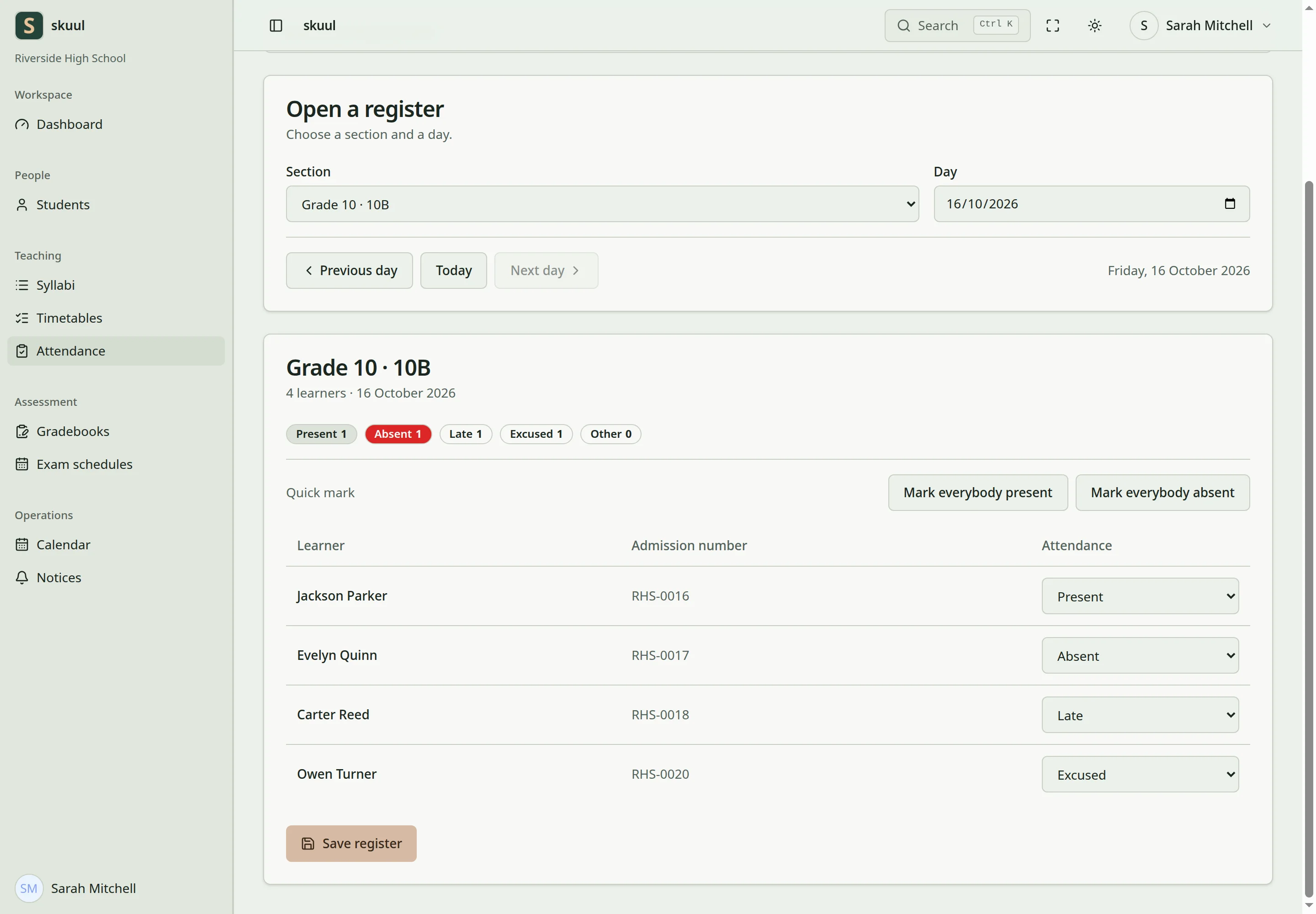
Use explicit attendance states and review unrecorded entries.
- Select Section, for example Grade 10 · 10A.
- Check the day. Use Previous day, Today, and Next day to change it.
- Select the state of each learner.
- Check the totals: Present, Absent, Late, Excused, and Other.
- Select Save register.
The message Attendance register saved. shows when the register saves.
Each learner without a saved state starts as Present. Check every learner before you save. Select Not recorded for a learner you did not see. Mark everybody present and Mark everybody absent set every learner to that state. Correct the exceptions before you save. A state change has no effect until you select Save register.
| State | Use | Counts as present |
|---|---|---|
| Present | Attended normally. | Yes |
| Absent | Did not attend. | No |
| Late | Arrived late. | Yes |
| Excused | Authorized absence. | No |
| Left early | Attended and left early. | Yes |
| Remote | Attended remotely. | Yes |
| School activity | Attended a school activity. | Yes |
| Not recorded | No attendance decision. | Not counted |
The attendance rate leaves out only Not recorded. Excused counts as not present. Example: Present, Late, Absent, Excused, and Not recorded give 2 present out of 4 recorded: 50%. A register that nobody saved gives no entries. Check which registers are missing as well as the rate.
Correct a saved entry
- Open the same section and day.
- Change the incorrect state.
- Select Save register.
- Reload the page and check the state.
The application keeps the history of each change. After a learner moves to another campus, the old campus keeps its registers. Correct an old entry in that campus.
| Problem | Action |
|---|---|
| Save register is not shown | Check take attendance and the period status. |
| No learners appear | Check the section, the day, and the working cycle. |
| The day is refused | Choose today or an earlier day. Check the campus calendar for closure days. |
| The rate seems too low | Excused counts as not present. |
| The rate seems too high | Look for learners marked Not recorded and registers nobody saved. |
Families see attendance when the Attendance feature and the Attendance portal area are on. See campus moves and family portal.