Subjects, course offerings, and teachers
A subject is an entry in the campus catalogue, for example Algebra. Manage it in Teaching → Subjects. A course offering is a subject taught to a roster in one cycle. Manage offerings in Teaching → Subjects being taught. The menu labels follow the campus terms.
Gradebooks and syllabi belong to an offering. A subject alone has no roster.
| Task | Campus permission |
|---|---|
| See offerings | read subject |
| Add offerings | create subject |
| Change a roster or add a teacher | update subject |
These permissions do not replace an active campus membership.
Create an offering
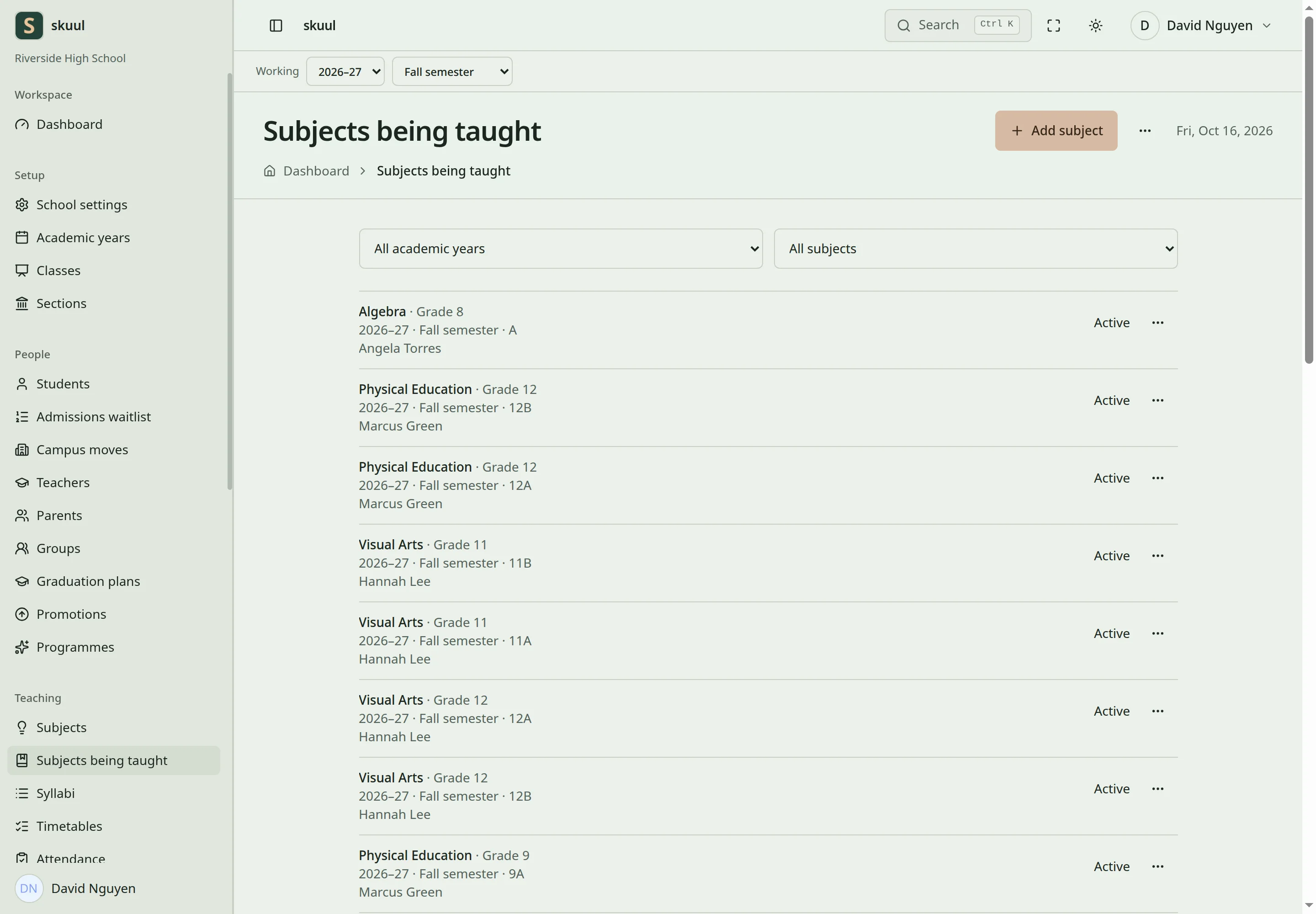
An offering defines the teaching context and learner roster.
- Open Teaching → Subjects being taught and select Add subject.
- Select Subject, Academic year, Class, and Term. All terms in the academic year makes one offering for each term.
- Select Who attends, for example One section or Whole class.
- For One section, select the section.
- Enter an optional Periods a week and Capacity.
- Select Add subject. The offering is a draft.
- Select Activate on the offering row.
| Field | Requirement |
|---|---|
| Term | Must belong to the selected year. |
| Periods a week | A whole number from 1 to 80. |
| Capacity | A whole number from 1 to 5000. |
The Who attends options follow the teaching model of the cycle. Combined sections and named learners need a model that allows them, or a subject exception. Named learners must attend the selected campus and class.
Activation checks the term, the roster, and duplicate active offerings.
Add a subject to several classes
- Open the ellipsis on Subjects being taught and select Set up across levels.
- Select Subject and Term.
- Under Who takes it, select each class and its roster.
- Select Add subject.
Check the rows it creates. Each class has its own roster.
Assign a teacher
- Open the actions of the offering row and select Add teacher.
- Select Teacher and Role: Lead teacher or Supporting teacher.
- Select Add teacher.
The teacher shows on the offering row. Only an active campus teacher can be assigned. A section must be part of the offering. A closed cycle does not accept assignment changes.
An account role and a teaching assignment are separate. Give the teacher the campus role first. Then assign the offerings. A staff record alone does not assign subjects.
Change or retire an offering
- Open the actions of the offering row and select Edit roster.
- Change Who attends and the selected sections or learners.
- Select Save roster.
- Select Gradebook and check the learners.
Archived offerings stay in the history and do not accept normal changes. Do not replace an offering to hide its grades or published results.
To copy offerings into the next cycle, open the ellipsis and select Roll over subjects.
| Problem | Action |
|---|---|
| The subject exists but the gradebook has no learners | Create and activate an offering with a roster. |
| A teacher cannot edit marks | Check the gradebook permission and the teaching assignment. |
| Activation is refused | Check the term status, the roster, and duplicate active offerings. |
| A named learner is rejected | Check that the learner attends the campus and class of the offering. |
Check the result
- The offering row shows Active and the teacher.
- The gradebook lists the expected learners.
See gradebooks, syllabi, and teaching models.