Boarding houses, rolls, and nights away
Turn on Boarding under School settings → School features to show the Boarding menu. The menu has two pages: Houses and Nights away. Open boarding rolls from a house page with Boarding rolls. Select the working academic year and term first. You need boarding permissions for each task.
Prepare boarding places
- Open Boarding → Houses and select Open a house.
- Enter the Name and What this school calls it, for example House, hostel, or block.
- Enter the number of Rooms and Beds in each room, and optional Notes.
- Select Open the house.
- On the house page, add more rooms with Room name, Floor, and Add room.
- Add more beds to a room with Bed name and Add bed.
The app names the first rooms and beds for you, for example Room 1 and Bed 1. The house page shows the beds Taken, Free, Out of use, and Away tonight. It also shows the staff On duty. You cannot assign duty staff on this page.
To give a learner a bed, do these steps:
- Under Give a learner a bed, select the Learner and a free Bed.
- Enter an optional Note.
- Select Give the bed.
- Check that the learner shows in the intended bed under Rooms.
The Bed list shows only free beds that are Available in rooms that are in use. A learner who already boards moves to the new bed. The old bed becomes free. A closed enrollment cannot take a bed.
To end a placement, open the bed menu and select End placement. Enter Why they are leaving, then select End placement. Ending a placement keeps its history. It also cancels nights away that have not started yet. A campus move or departure releases the learner's bed. Suspension does not release it.
To change a bed, open the bed menu and select Edit bed. Bed statuses are Available, Maintenance, Unavailable, and Retired. To take a room out of use, edit the room and clear In use. To change or close a house, open the house actions menu and select Change or close the house. Move current boarders out before you close a house or room, or make a bed unavailable.
Use an organization residence
An organization administrator opens the organization and selects Shared residences. Enter the Name and optional Notes, then select Add the residence. Use Link a campus… to link a campus, then Add a house… to add its houses. A house must belong to a linked campus of the same organization. You cannot unlink a campus while its houses are in the residence. A shared residence does not give access to other campuses.
Take a roll
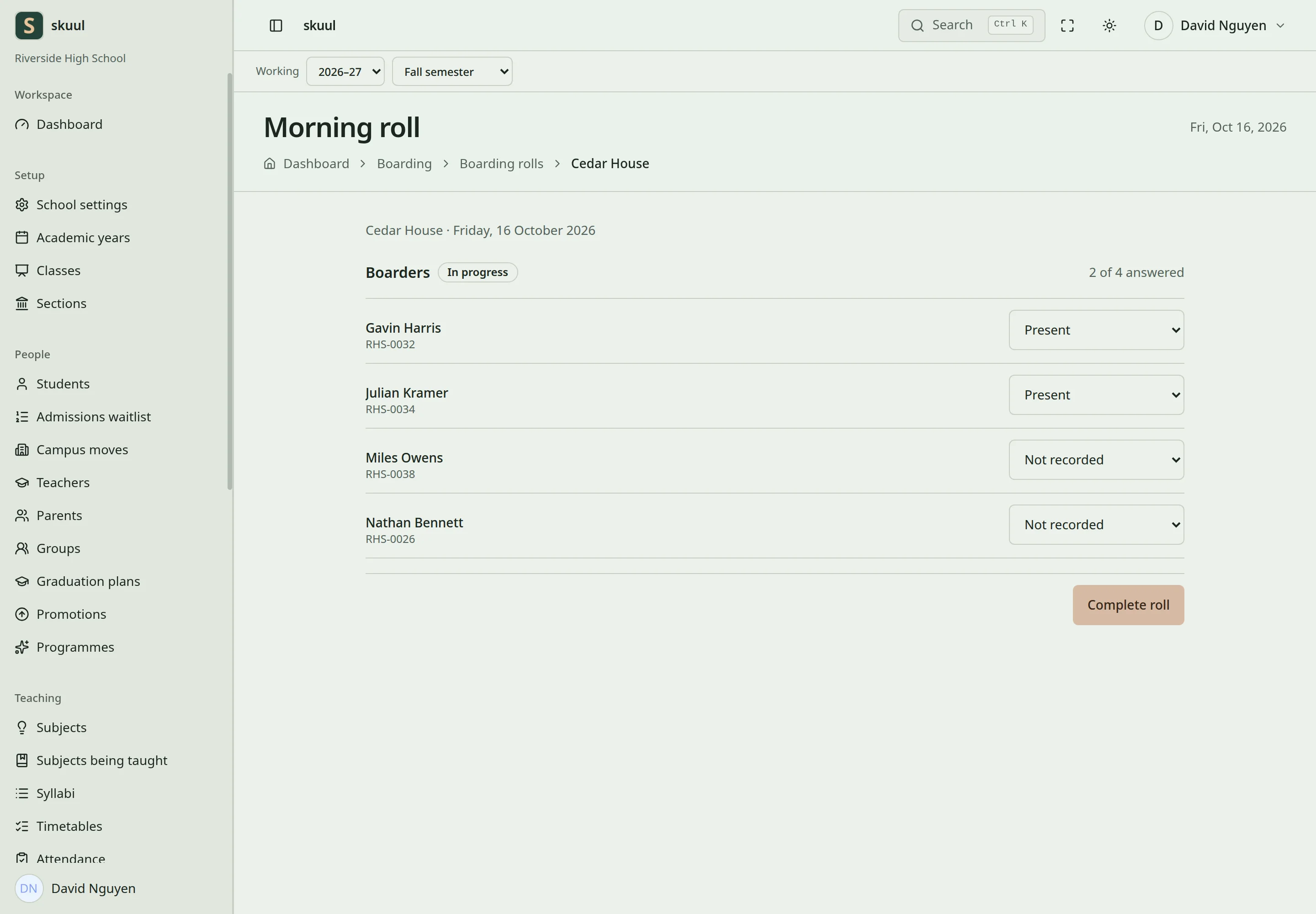
Complete the roll after recording every required entry.
- Open a house and select Boarding rolls.
- Choose the Day. It must be today or an earlier day.
- Select Start beside Morning roll, Evening roll, or Curfew roll for the house.
- Select an answer for each boarder.
- Select Save.
- Select Complete roll and confirm.
Answers are Present, Late, Away, Excused, Unaccounted, and Not recorded. The app shows The roll is complete. If a boarder is Not recorded, the app shows Record every boarder before completing the roll. A house with no current boarders cannot start a roll. A completed roll is read-only.
Process nights away
- Open Boarding → Nights away and select Ask for a night away.
- Select the Boarder.
- Enter Leaves on, Comes back on, and Where they are going.
- Enter the optional Who the house can ring and Reason.
- Select Ask for the night away.
The app shows The request is waiting for a decision. The request shows under Waiting for a decision. Select Approve to approve it. To refuse it, open its menu, select Refuse, enter the reason, and select Refuse. To cancel a request that has not started, open its menu and select Call off. When the learner comes back, select Back in under Out tonight or Not back yet.
States are Waiting for a decision, Approved, Refused, Cancelled, and Back in the house. Only a current boarder can ask for a night away. Dates must not overlap another night away for the same learner.
Families see placements and nights away when the Boarding family page is on.
Enter houses and bed placements
Boarding uses the read boarding and manage boarding permissions. read boarding opens the pages. manage boarding changes houses, beds, rolls, and requests. Deciding nights away needs the separate decide overnight leave permission.
Name accepts 100 characters and must be unique in the campus. What this school calls it accepts 40 characters. Rooms accepts 1 to 200. Beds in each room accepts 1 to 40. Room name accepts 60 characters. Bed name accepts 40 characters. Why they are leaving needs 3 to 255 characters.
Finish a roll and record a night away
On the roll sheet, each answer other than Present shows a Where field and a Note field. Where accepts 150 characters. Note accepts 1000. Select Save, then Complete roll when every boarder has an answer. Put back discards unsaved roll changes.
The return date must be on or after the date the learner leaves. Where they are going accepts 150 characters. Who the house can ring accepts 100. Reason accepts 1000. A refusal needs a reason, so the house can tell the family.
| Problem | Action |
|---|---|
| Somebody already sleeps in that bed. | Choose a free bed. |
| That bed is out of use. | Set the bed to Available, or choose another bed. |
| Record every boarder before completing the roll. | Give every boarder an answer, then select Save. |
| This learner already has leave covering one of those nights. | Check the learner's existing nights away. |
| A learner cannot come back before they leave. | Set Comes back on on or after Leaves on. |
| Suspension has not freed a bed | Select End placement when the learner must leave the bed. |
Check the result
- Check bed occupancy and placement history.
- Confirm that the completed roll has no Not recorded answers.
- Check the decision and return state of a night away.
See student status and campus moves.