Campus settings and setup
Use Organization → Schools to open a campus. Select Add school to create one. Then use Setup → School settings to finish the setup checklist. To change campus details, you need update school or manage school settings at the working campus. An organization member with Manage campuses can also change the campuses of that organization.
Complete campus setup
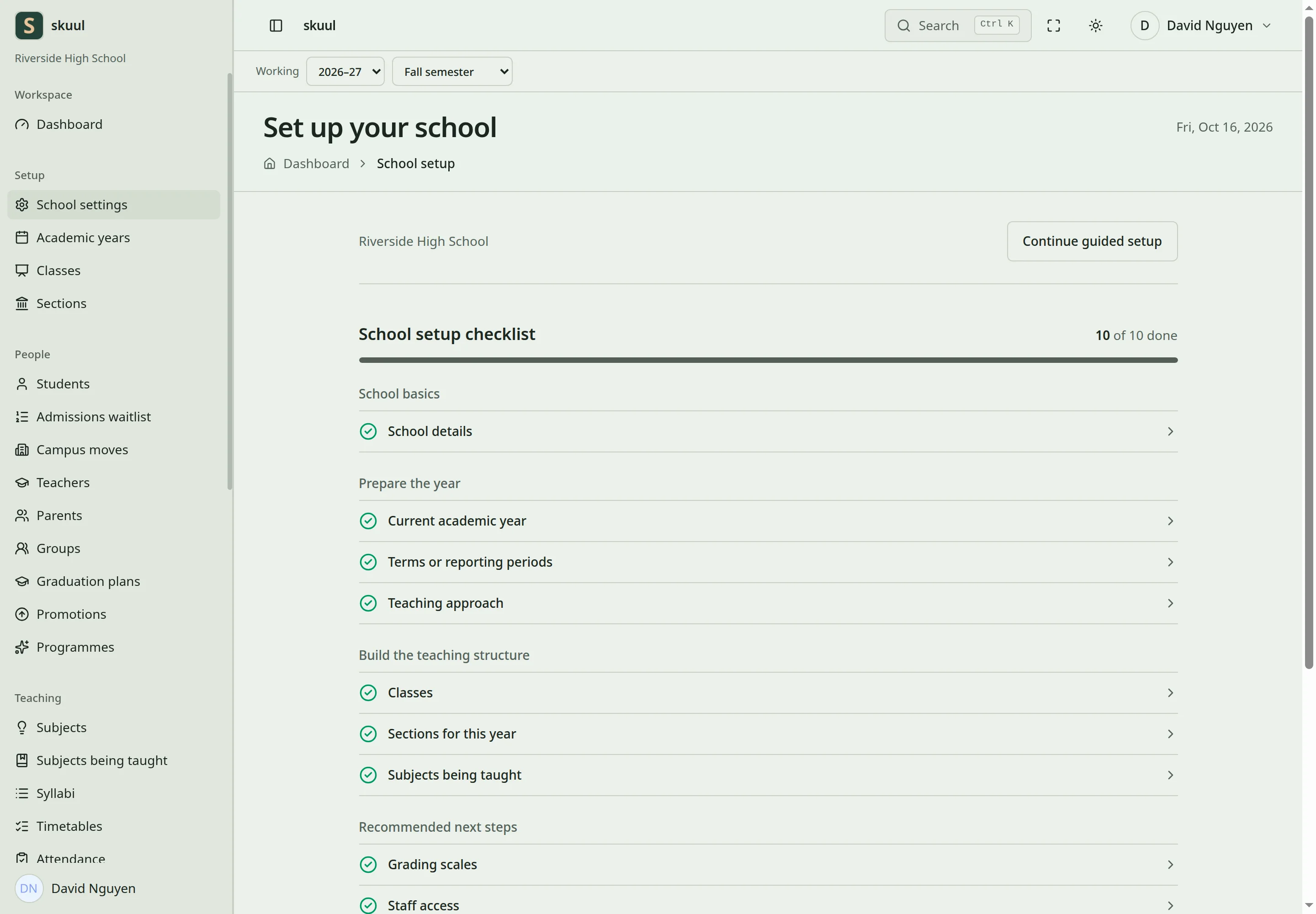
Each open step says why it is open and links to the screen that finishes it.
Setup → School settings opens the Set up your school page. The School setup checklist shows a count, for example 1 of 10 done, and how many required steps remain. Each step shows done or to do. For example: "No current academic year is selected."
| Group | Steps |
|---|---|
| School basics | School details |
| Prepare the year | Current academic year, Terms or reporting periods, Teaching approach |
| Build the teaching structure | Classes, Sections for this year, Subjects being taught |
| Recommended next steps | Grading scales, Staff access, Student records |
Select Continue guided setup to follow the guided steps in order:
- School details: check the name, contact details, address, and time zone.
- School language: select the words that the campus uses.
- Classes or grades: create the levels.
- Academic year: create the year and its terms.
- Finish setup.
Select Save and finish later to leave the guided setup. After that, set the teaching approach, add people and their access, and create subjects being taught.
Review campus details
- Open the campus and select Edit school details.
- Check School name, Short name, Phone number, School email, and the address fields.
- Select the Time zone. Server time (UTC) uses the server clock.
- Select Save changes. In the guided setup, select Save and continue.
School name accepts 255 characters. Short name accepts 10. Address needs 8 to 255 characters. Phone number needs at least 5 characters. A phone number accepts only digits, spaces, dashes, plus signs, and brackets. Otherwise the form shows: "The phone format is invalid." This form does not change the campus organization.
Set the school language
- On Set up your school, select School language under Day to day.
- Under Starting language pattern, select a preset.
- Optional: change the fields under Words your school uses. Each field accepts 40 characters.
- Select Save. In the guided setup, select Save and continue to classes.
| Preset | Words |
|---|---|
| Class-based school (default) | Academic year · Class · Section · Term · Subject · School fees · Class teacher |
| Grade and subject-based school | Academic year · Grade · Homeroom · Semester · Course · Tuition · Class teacher |
| Mixed class and subject school | Academic year · Grade · Section · Term · Subject · Fees · Class teacher |
The school language changes labels in forms and navigation. It does not select the teaching model. Set the teaching model with the Teaching approach step.
Configure family access
- On Set up your school, select School features.
- Turn on Student and guardian portal.
- Under Family pages, turn on each page that families must see.
The family pages are Results, Attendance, Timetable, School calendar, Notices, Invoices and payments, Documents, Requests, Library, Boarding, Graduation progress, Programmes, and Syllabi. Some pages also need their own tool. For example, the Library page needs Library. The portal uses enrollment and guardian links to select records. It does not give families a staff membership at the campus. See optional features.
Keep operational history
Archive or close records through their own workflows. A tool switch hides an area and blocks its operations. It does not delete its records. A change to labels or settings does not change existing placements or published results.
Review setup before admitting learners
Complete the calendar, levels, sections, subjects, and teaching model for the working cycle. Publish the dated calendar and activate sections before you add students. Assign teachers to subjects being taught before you test gradebook editing. Test with an authorized campus staff account. Do not rely only on platform access.
| Problem | Action |
|---|---|
| Today differs from the expected date | Check the campus Time zone and the server time. |
| Labels changed but roster choices did not | School language and teaching approach are separate settings. |
| Setup looks complete but student admission has no section | Check the working cycle and the section Active state. |
| Family page is not available | Check Student and guardian portal, the family page switch, and its related tool. |
Check the result
- Review the campus name, time zone, and school language after you save.
- Confirm that the setup checklist shows the completed steps as done.
See optional features, academic calendars, and family access.