Library catalogue, loans, and reservations
Enable Library in feature switches. Use Library → Catalogue, Library → Lending desk, and Library → Library queue. The Catalogue item opens the page with the heading Library.
| Task | Permission |
|---|---|
| See the catalogue, the lending desk, and the queue | read library |
| Put copies on the shelf, withdraw copies, and change the lending rules | manage library |
| Lend, renew, and take back copies; add or remove reservations | lend library item |
Add stock
A title describes the book. A copy is one physical item with its own barcode.
- Open Library → Catalogue.
- Select Put a book on the shelf.
- In Which book, type 2 or more characters of the title, author, or ISBN.
- Select the book in the list. If it is not there, select Describe a new book.
- For a new book, enter Title. Author, ISBN, and Category are optional.
- Enter Barcode of the first copy and How many copies.
- Enter a Shelf mark if necessary.
- Select Add to the shelf.
The app numbers the copies from the first barcode. For barcode LIB-2001 and 3 copies, the barcodes are LIB-2001, LIB-2001-1, and LIB-2001-2. A message such as 2 copies are on the shelf. confirms the result.
| Field | Limit |
|---|---|
| Title, Author | 255 characters |
| ISBN | 20 characters |
| Category | 80 characters |
| Barcode of the first copy, Shelf mark | 60 characters |
| How many copies | 1 to 50 |
The campuses of a group share the catalogue of titles. A barcode must be unique on the campus. If a barcode is in use, the form shows a message such as This campus already has a copy with the barcode LIB-1001, LIB-1001-1. If the ISBN is already in the catalogue, select that book instead of a new one.
The Copies table shows Barcode, Title, Author, Where it is, and Who has it. Use Search copies to find a copy by title, author, ISBN, or barcode.
To remove a copy from stock, select Withdraw on its row and confirm. The copy then shows Taken out of the library. Its loan history stays. Withdraw shows only for a copy that is not on loan.
Lend and return a copy
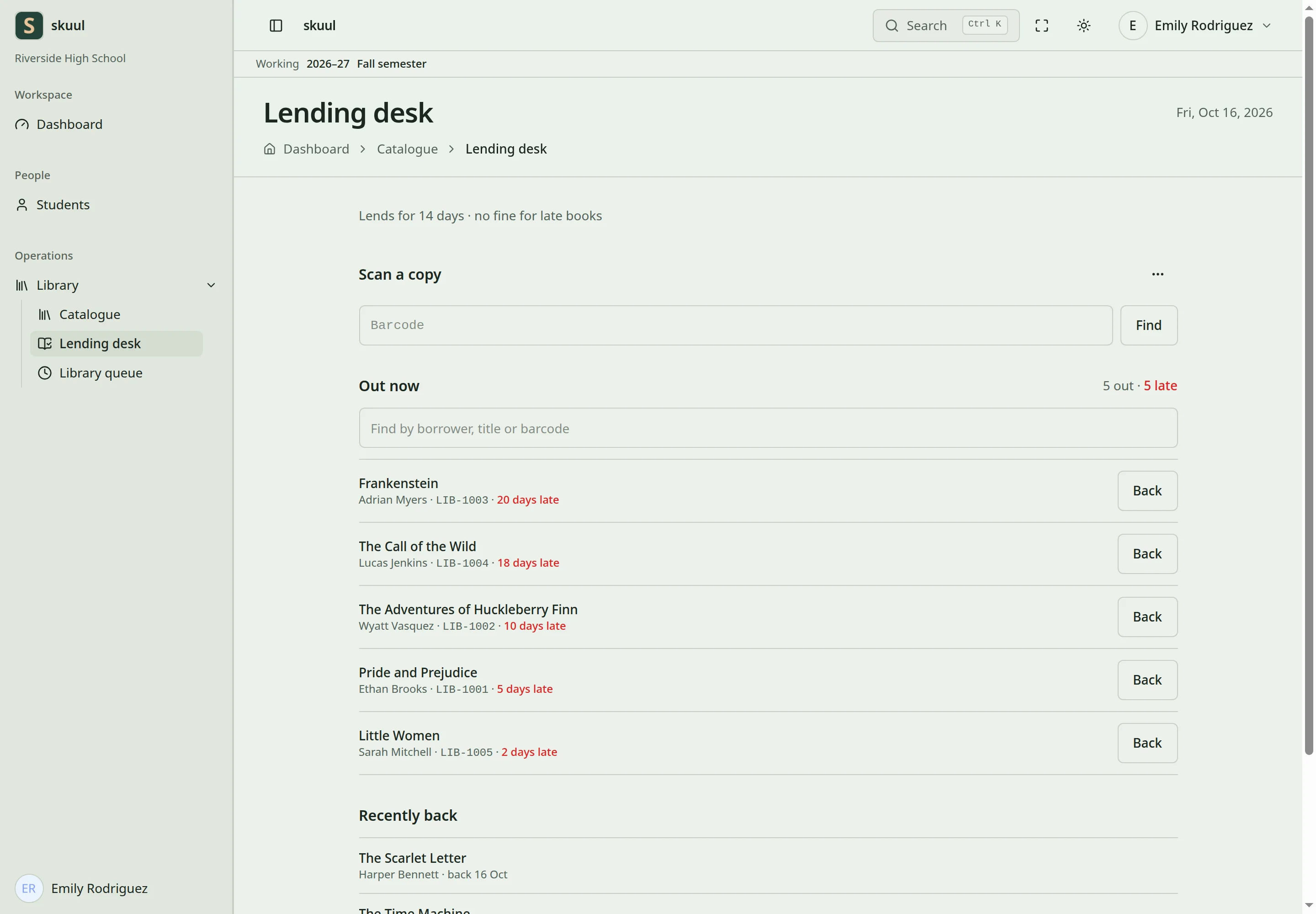
A loan belongs to a physical copy and an eligible borrower.
- Open Library → Lending desk.
- Under Scan a copy, scan or type the Barcode. Select Find.
- For a copy on the shelf, type the borrower's name or admission number in Who is taking it?
- Select Lend next to the person.
- Read the message, for example The Time Machine is out to Emma Campbell until 30 Oct.
The due date is today plus Days a loan lasts. The borrower must belong to the campus. A learner must still attend the campus. A borrower cannot hold more items than the limit in the lending rules.
To take a copy back, scan its barcode and select Take it back. You can also select Back next to the loan under Out now. The message The copy is back. confirms the return. If the copy is late and the library charges fines, the app adds the fine to the learner's fee account. The desk does not record the condition of a returned copy.
Under Out now, type in Find by borrower, title or barcode to find a loan. Recently back lists returned copies and any fines.
Lend a class set
- On the lending desk, select More at the desk (⋯), then Lend a class set.
- Select the class in Choose the class and the title in Choose the title.
- Select Lend the set.
The app lends one copy to each attending learner in the class. The whole set goes out, or nothing does. If there are not enough copies, the form shows a message such as There are only 2 available copies for 5 learners. Each attending learner must have an account.
Renew a loan
Scan the copy and select Renew. You can also select Renew in the loan's ⋯ menu under Out now. The message shows the new due date, for example Due back 13 Nov 2026.
Renew shows only when the loan is not late and has renewals left. The app also refuses a renewal in these conditions:
- The library does not renew loans.
- The borrower has left the campus.
- Somebody is waiting for the title in the queue.
Reserve a title
A reservation is for a title, not one copy.
- Open Library → Library queue.
- Select Put somebody in the queue.
- Select the Title.
- In Who is waiting, type a name or admission number. Select the person.
- Select Done to close the form.
If a copy is on the shelf, the app holds it at once. The message is, for example, A copy of The Time Machine is behind the desk for Emma Campbell. If no copy is on the shelf, the person joins the queue. The message shows their number. The app refuses a reservation when the person is already in the queue or already has a copy of the title.
Behind the desk lists each held copy, its borrower, and its kept until date. In the queue lists the waiting people in order. A returned copy is held for the person who waited longest.
To collect a hold, lend that copy to that person at the lending desk. The app then closes the reservation. The desk refuses to lend a held copy to another person.
To cancel a reservation, open its ⋯ menu and select Take off the queue. Confirm the message. A held copy then goes to the next person.
The daily command skuul:process-library-holds ends holds after Days to collect a hold. It then holds the copy for the next person.
Families can see their loans and reservations in the Library area of the family portal.
Set the lending rules
- Open Library → Catalogue.
- Select More for the library (⋯), then Lending rules.
- Enter the values and select Save the rules.
| Field | Limit |
|---|---|
| Days a loan lasts | 1 to 365 |
| Renewals allowed | 0 to 10. Zero means no renewals. |
| Days to collect a hold | 1 to 30 |
| Items a learner may hold | 1 to 100 |
| Items a member of staff may hold | 1 to 200 |
| What one late day costs | Zero means no fines. |
| Most a late loan can cost | Optional. Leave it empty for no limit. |
The message The lending rules were saved. confirms the change. The lending desk shows the loan days and the daily fine at the top.
| Problem | Action |
|---|---|
| No copy on this campus has that barcode. | Check the barcode on the copy. The copy must belong to this campus. |
| A barcode is rejected when you add stock | Search the catalogue for that barcode. Use a different first barcode. |
| This copy is being kept for somebody else who reserved it. Lend another copy. | Lend a different copy, or lend this copy to the person on Behind the desk. |
| This person already has 3 items, which is all this library lends at once. | Take a copy back first, or change the item limit in the lending rules. |
| A class set is refused | Count the copies on the shelf and the attending learners in the class. |
| Renew does not show | The loan is late or has no renewals left. |
| Somebody is waiting for this title. Bring the copy back so it can go to them. | Take the copy back. The app holds it for the next person. |
| A hold ran out before collection | Check Days to collect a hold and the scheduled command. |
Check the result
- After a loan, check the borrower and due date under Out now.
- After a return, check that the copy shows On the shelf in the catalogue.
- Check Behind the desk before you lend a copy of a reserved title.
See feature switches and scheduled work.