Facilities and bookings
Use Facilities to manage rooms, vehicles, equipment, and other things the campus shares. You need the read facility permission to open the page. Timetable rooms and facility bookings share availability checks.
Set up a facility
- Open Facilities and select Share something new.
- Enter the Name and select the Kind.
- Enter the optional How many it holds and Notes.
- Select Add it.
The app shows [Name] can be booked now. The new facility shows under What the campus shares.
Kinds are Classroom, Laboratory, Hall, Sports ground, Vehicle, Equipment, and Other. To edit a facility, open its row menu and select Change. Then select Save.
To stop bookings, open the row menu and select Take out of use. The app gives up every booking ahead for that facility. It also tells you how many published lessons still use it. Move those lessons in the timetable. A timetable conflict review also lists lessons in a room that is out of use. A room's capacity does not replace the section enrollment capacity.
Book a resource
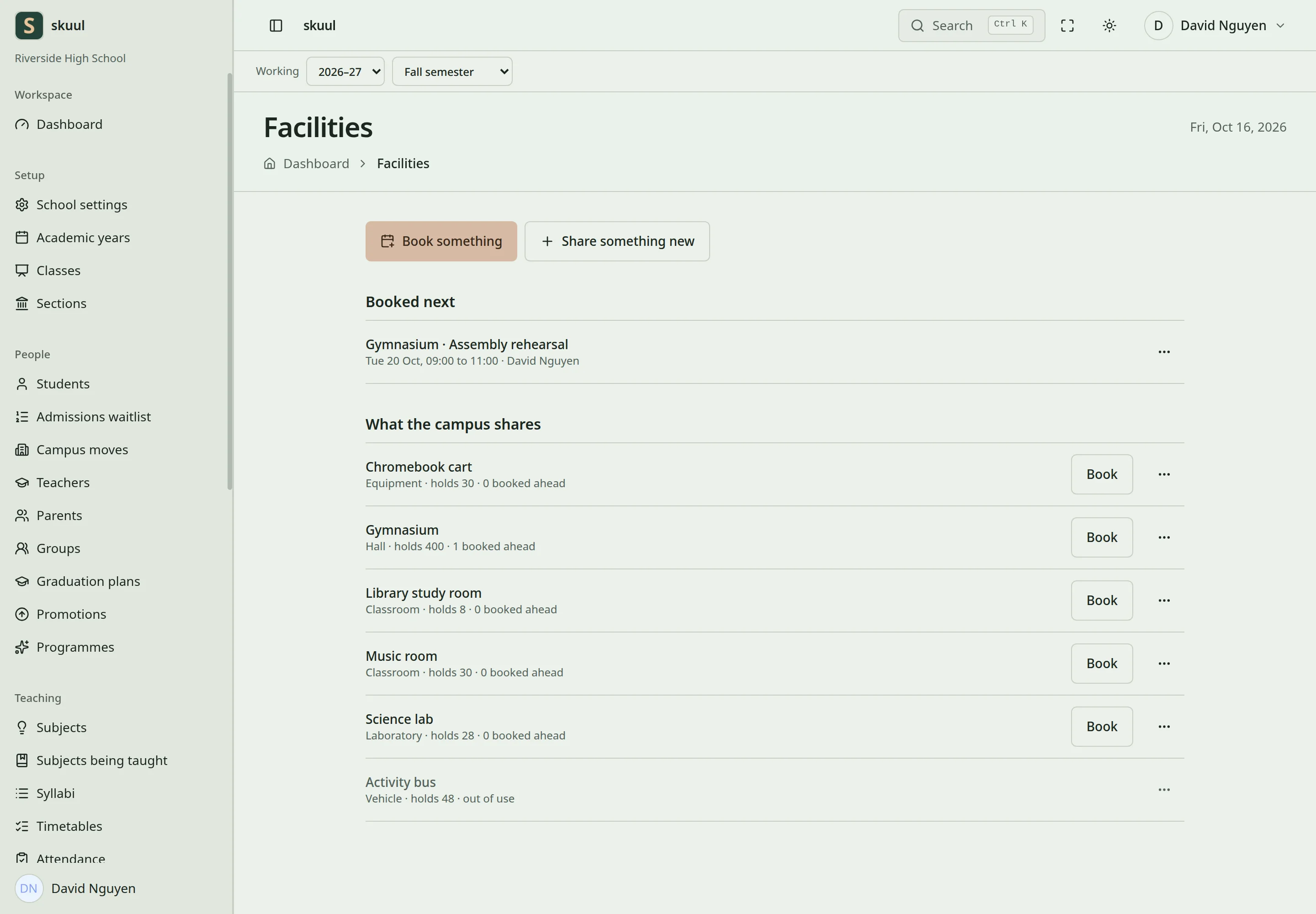
Facility bookings share availability checks with published timetables.
- Select Book beside the facility, or select Book something.
- Check What, then enter the From and Until date and time.
- Enter What it is for.
- Select Book it.
- Read the message. The booking shows under Booked next.
The app shows, for example, Gymnasium is booked for 20 Oct, 09:00.Until must be after From. A new booking must not end in the past. A facility that is out of use cannot be booked. The app refuses a booking that overlaps another booking or a lesson in a published timetable.
To cancel a booking, open its row menu under Booked next and select Give it up. Enter an optional reason, then select Give it up again. Select Keep it to stop. You can give up your own booking. A user with manage facility can give up any booking. A booking that is over stays in the record and cannot be given up. A booking does not change a published timetable. Use the timetable revision or dated override workflow for teaching schedule changes.
Use facility and booking controls
These tasks use three permissions:
read facilityopens the page.manage facilityadds, changes, and takes facilities out of use.book facilitymakes bookings.
Name must be unique in the campus and accepts 120 characters. How many it holds accepts whole numbers from 1 to 100000. Notes accepts 1000 characters. What it is for accepts 255 characters. The reason to give up a booking accepts 255 characters. Select Bring back into use in the row menu when a facility can be used again.
| Problem | Action |
|---|---|
| This campus already shares something with that name. | Enter a different name. |
| That time has passed. Choose a time still ahead. | Enter a booking that ends in the future. |
| A booking has to end after it starts. | Set Until after From. |
| [Name] is already booked from … for … | Change the times, or ask the holder to give up that booking. |
| [Name] holds a lesson for … that day. | Choose another time or facility. Check the published timetable. |
| [Name] is out of use. | Select Bring back into use, or book another facility. |
| This booking is over, so it stays in the record. | Past bookings cannot be given up. |
Check the result
- Check the facility, booking times, and purpose under Booked next.
- Verify that the app refuses a booking that overlaps another booking.
See timetables and calendar events.