Groups and programmes
Use People → Groups for cohorts, such as a graduation year or a scholarship group. Use People → Programmes for clubs, interventions, and other services. Turn on Programmes under School settings → School features to show the Programmes page. These records are separate from class placement.
Manage a group
- Open People → Groups and select Make a group.
- Enter the Name and select the Kind of group.
- Enter the optional What it is for, then select Make the group.
- On the group record, choose a Learner and the Joined on date.
- Select Add.
The app shows The learner joined the group. To end a membership, open the row menu and select Take out. The app shows The place was closed. The group still shows who held it. The person moves to Who has left with their dates.
Kinds of group are Graduation year, Scholarship group, Club, Watchlist, Ranking group, and Other. A watchlist is always restricted. Only users with read restricted cohort see it. Joined on must not be in the future. Only a learner who still attends the school can join. Do not change a learner's class placement only to add them to a group.
To close a group, select Change on the record. Clear Still in use. A closed group takes nobody new., then select Save.
Create a programme
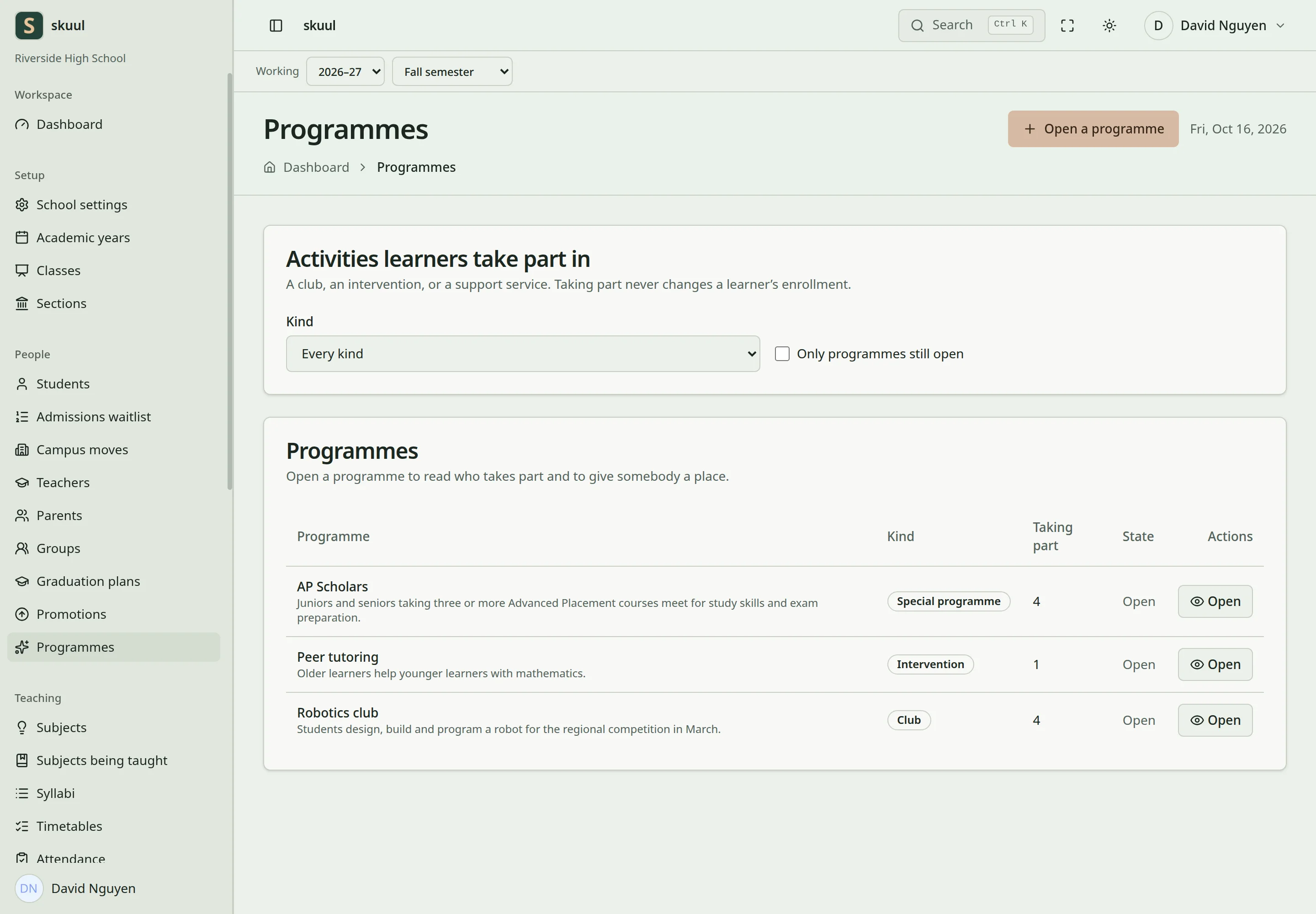
- Open People → Programmes and select Open a programme.
- Enter the Name and select the Kind.
- Enter the optional What it is.
- Select Open the programme.
Kinds are Club, Intervention, Support service, Extracurricular activity, and Special programme. The name must be unique in the school. Keep the programme open while it accepts new places.
Give a learner a place
Programme participation does not change class placement.
- Select Open on the programme row.
- Choose the Learner and the Starts on date.
- Enter the optional When it runs and select the optional Run by staff member.
- Select Give a place.
- Check the new place under Places. It starts as Requested.
- Open the row menu and select a Mark as … action to change the state.
Participation states are Requested, Taking part, Completed, and Withdrawn. A requested place can move to Taking part or Withdrawn. A place that is taking part can move to Completed or Withdrawn. A withdrawn place can move back to Taking part.
A learner holds one running place in a programme at a time. Only a learner with an active enrollment gets a place. A closed programme gives no new places. The places held keep running. Programmes have no capacity limit and no waitlist. A withdrawn or completed place stays on the record. A programme does not give a learner or staff member new campus permissions.
Families see their places when the Programmes family page is on. A budget can refer to a campus programme.
Use group controls
Groups use the read cohort, create cohort, and update cohort permissions. A watchlist also needs read restricted cohort. Name accepts 100 characters. What it is for accepts 1000. Group names must be unique in the school.
Use programme controls
Programmes use the read program, create program, and update program permissions. The permission names use program. The interface uses "programme". Name accepts 100 characters. What it is accepts 1000. When it runs accepts 255. Run by lists only people with a staff role in the school.
To close a programme, select Change on the record. Clear Open. A closed programme gives no new places; the places held keep running., then select Save.
| Problem | Action |
|---|---|
| A watchlist is not in the list | Check that you have read restricted cohort. |
| This school already has a group with that name. | Enter a different name. |
| This school already has a programme with that name. | Enter a different name. |
| … is closed. Open it again before anybody joins. | Select Change and mark the group as in use. |
| This programme is closed. | Select Change and mark the programme as open. |
| A programme needs an active enrollment. | Check the learner's enrollment status. |
| Programme has no queue | Programmes have no capacity limit or waitlist. |
Check the result
- Check the participation state, start date, schedule, and staff member.
- Confirm that the learner has only one running place.
- Review group membership separately from the learner placement.
See student enrollment, budgets, and family portal.