Syllabi, coverage, and lesson notes
Use Teaching → Syllabi for a course offering. A syllabus is the teaching outline. Its publication and coverage are separate records.
Prepare and publish a syllabus
- Select Add syllabus and choose the course offering. The draft opens.
- Under Add a topic, add each topic in teaching order.
- To start from an existing plan, use Start from an existing plan.
- Under When the plan is ready, select Send for review.
- The reviewer selects Approve and publish, or sends it back with a reason.
A person with approve syllabus sees Publish on the draft and publishes it without review.
States are Draft, Awaiting review, Published, Superseded, and Archived. Only published syllabi appear as published teaching material. Withdraw a submitted draft when it needs more work. Create a revision to change a published syllabus. Publishing a revision preserves the previous outline as history. Select Print scheme of work for a printable copy.
Track delivery
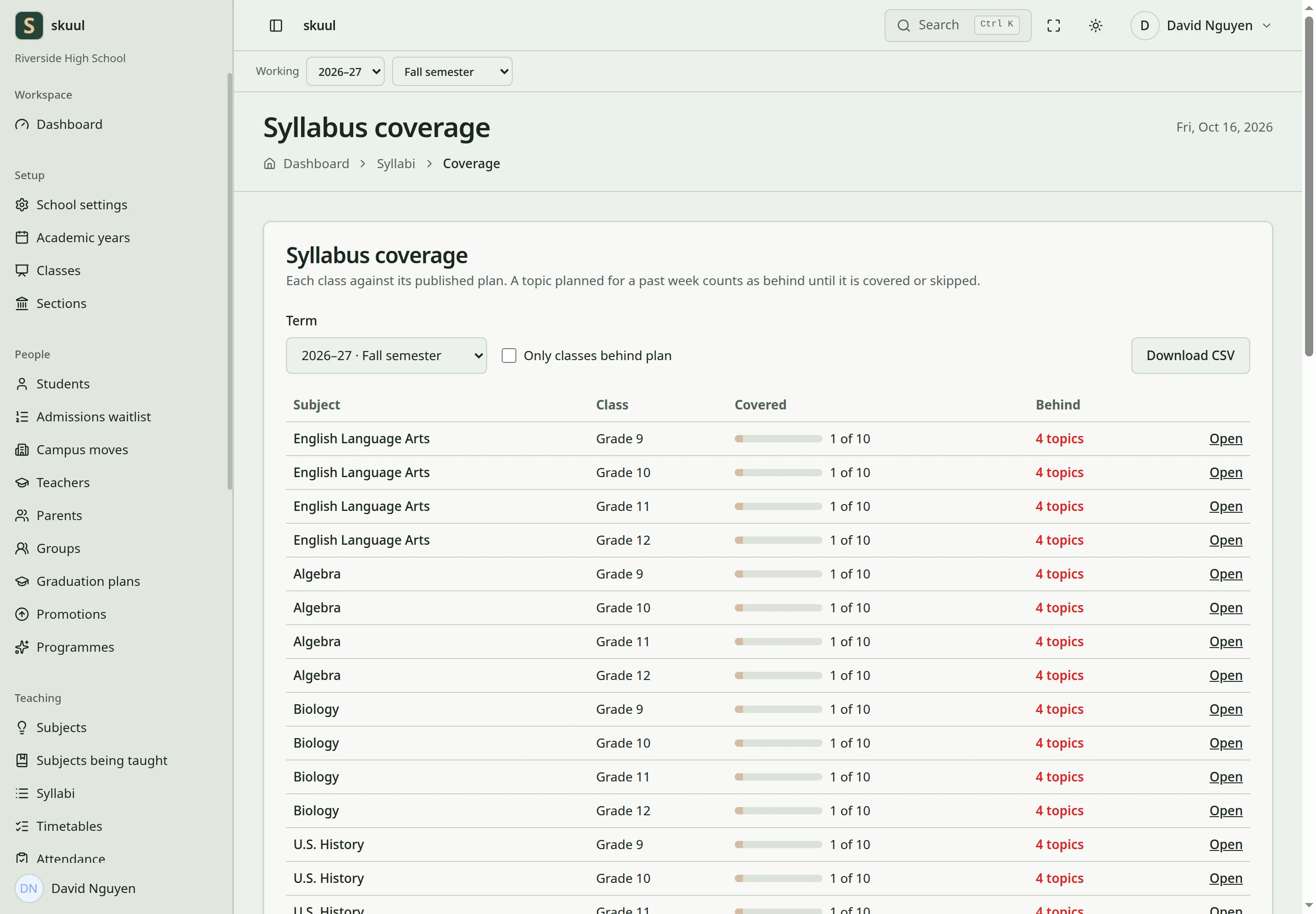
A published outline and recorded coverage are separate.
Record topic coverage for the relevant section. Set each topic to Covered, Partly covered, or Skipped. A topic stays Not yet taught until you record coverage. Covered and Skipped are settled. A partly covered topic still needs work. The coverage page compares planned delivery with recorded progress. Scheduled reminders can notify teachers about classes behind their plan.
Write lesson notes
Open lesson notes from a published syllabus. Create the weekly note against the relevant teaching context. Save a draft, then submit it for review. Notes use Draft, Submitted, Approved, and Returned states. Draft and returned notes can be edited before resubmission. Reviewers approve a note or return it for correction.
Link assessment coverage
Use the assessment plan to link gradebook items to syllabus topics. The syllabus must be published and belong to the same offering. The plan reads gradebook weights. Linking a topic does not change those weights. Review uncovered topics before the assessment.
Enter topics and send the outline for review
Use read syllabus to read and create syllabus to create an offering's draft. Editing and coverage also check teaching responsibility or the applicable syllabus management authority. Review and publication require approve syllabus.
For each topic, enter Topic and an optional Week, from 1 to 60. Enter optional Learning objectives, Content and activities, and Resources. Select Add topic. Use Edit and Save topic for corrections. Topic accepts up to 255 characters. Objectives and resources accept 5000 each. Content accepts 10000. Select Send for review when the complete outline is ready. Use Take back to edit before making further draft corrections. A reviewer uses Send back with a required review note when changes are needed. For published material, use Revise this syllabus, explain the change, and select Create revised draft.
Prepare a lesson note
- Open Lesson notes on the published syllabus.
- Select the section and enter Week, from 1 to 60.
- Select Topic where applicable.
- Enter Objectives and Lesson activities.
- Enter optional Evaluation.
- Select Save draft, then Send for review for that week's note.
Objectives accept 5000 characters, activities accept 10000, and evaluation accepts 5000. A reviewer selects Approve the note or Send back with the needed correction. Returned notes require editing and resubmission; returning does not approve them.
Reuse and inspect teaching coverage
Select Copy topics from, choose a permitted syllabus or library outline, then select Copy topics. Review the copied weeks and order in the destination draft. Use Save to library to retain a reusable outline. In the assessment plan, select Choose topics for [assessment], choose topics, and select Save topics. Use Only classes behind plan and Download CSV in the coverage report.
| Problem | Action |
|---|---|
| Published outline cannot be edited | Create a revised draft and submit it for review. |
| Topic remains outstanding | Record coverage for the correct section; outline publication alone records no delivery. |
| Lesson note remains Returned | Correct the note and send it for review again. |
| Assessment share is wrong | Correct gradebook weights; topic links do not change those weights. |
Check the result
- Check the syllabus publication state and revision.
- Verify each coverage record belongs to the intended section.
- Review outstanding topics and returned lesson notes.
See gradebooks and curriculum extensions.