Staff records, availability, and leave
Turn on Staff operations under School settings → School features to use the Staff menu. The menu has two pages: Staff directory and Staff leave. An employment record, account access, and teaching assignments are separate.
Maintain a staff profile
- Open Staff → Staff directory.
- Select Add an employment record.
- Select the Person. The person must have an account in this school first.
- Enter the optional Job title and Department.
- Select the Employment type. Enter the optional Staff number and Joined on date.
- Select Save the record.
The app opens the new record and shows The employment record was saved.
Employment types are Full time, Part time, Contract, Volunteer, and Intern. One person holds one employment record in each school. The staff number must be unique in the school. A person still enrolled as a learner cannot be made staff. A record does not give teaching responsibilities. Use the teacher and course-offering workflows for those assignments. The record holds qualifications, working hours, and leave. It has no appraisal workflow.
The directory shows the number of people Working now and Away today. Filter it by State, or select Only the people away today. Select Open profile to open a record. The Person list shows every person with an account in this school, including people who already have a record. Selecting one of them gives the error This person already has an employment record here.
Process leave
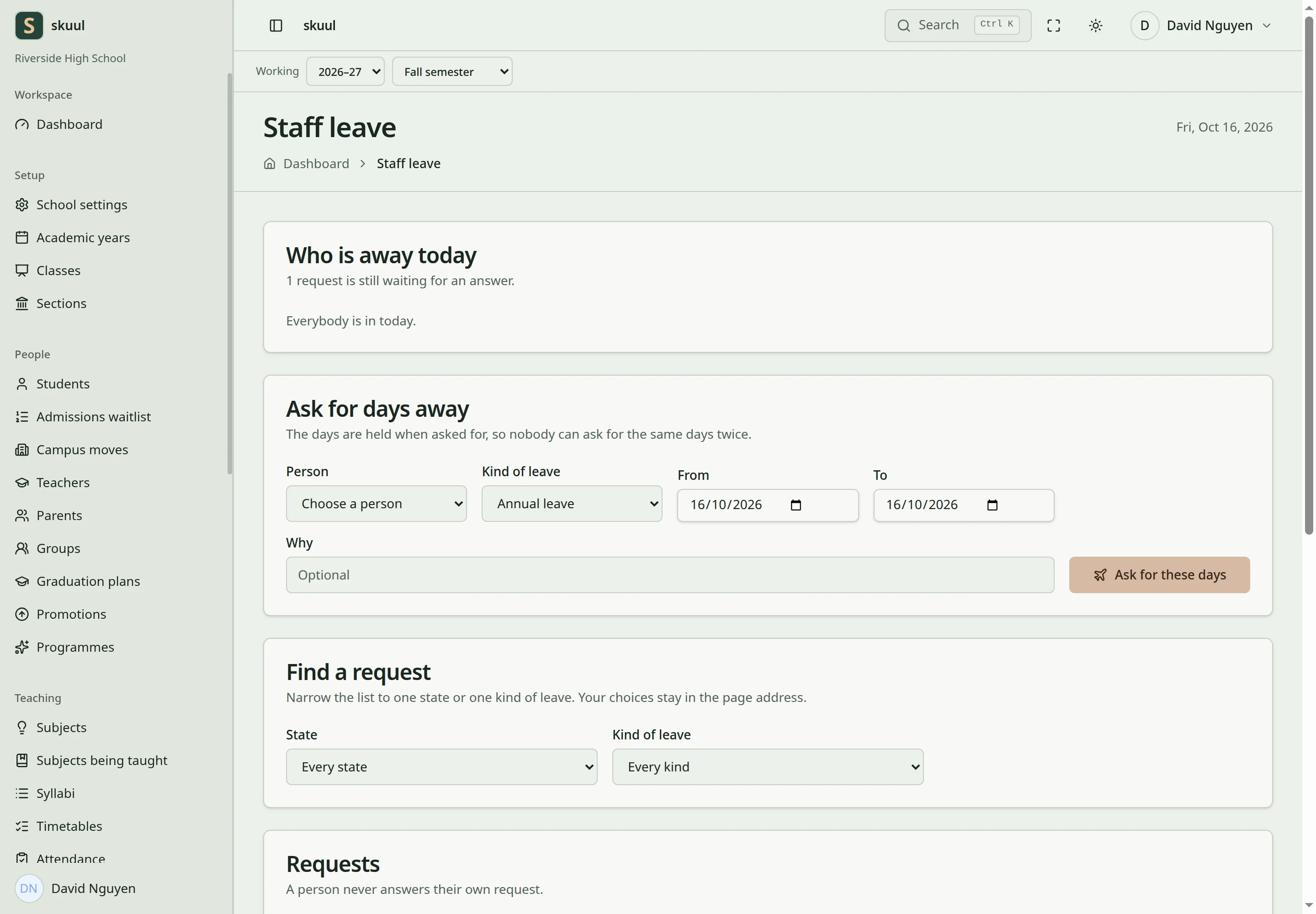
Approved leave affects teaching availability.
- Open Staff → Staff leave.
- Under Ask for days away, select the Person and the Kind of leave.
- Enter the From and To dates, and an optional Why.
- Select Ask for these days.
The Person list holds only people with an employment record here. The app shows The leave was asked for. The request starts in the Requested state. The app holds the days at once, so nobody can ask for the same days twice.
Kinds of leave are Annual leave, Sick leave, Compassionate leave, Study leave, Maternity leave, and Unpaid leave. States are Requested, Approved, Declined, Cancelled, and Taken.
To decide a request, select Agree or Say no on it under Requests. These buttons show only on a request in the Requested state. A person never answers their own request. Use Find a request to filter the list by State or Kind of leave.
Approved leave affects teaching availability and lesson-cover checks. You cannot approve leave for a person who covers a lesson in those days. Withdraw that cover first.
Record a leaver
- Open the staff record and select Change.
- Set State to Left.
- Enter the Left on date. An empty date means today.
- Select Save.
The app cancels leave held after the leaving date. The request then shows Cancelled. The leaver keeps campus access until the end of the last day. A daily scheduled process then ends the campus membership. It does not end the person's access at other schools. Review remaining memberships and responsibilities separately.
You cannot record a leaver who holds more at this school than you do. You cannot record that the last person who can manage roles left. Give role management to another person first.
Create employment and working hours
These tasks use the read staff profile, create staff profile, and update staff profile permissions. Staff number accepts 30 characters. Job title and Department accept 100 each. The Person list leaves out enrolled learners.
On the staff record, select Change to edit The job. Review State and Left on before you select Save.
To add a qualification, do these steps:
- Enter the Kind, for example a licence, and the Name.
- Enter the optional Issued by, Issued on, and Runs out on.
- Select Add the qualification.
Runs out on must not be before Issued on. An expired qualification shows Ran out and its date.
To add working hours, choose Day, From, and To, then select Add the hours. To must be after From. Hours on the same day must not overlap. A person with no hours listed is free all week. Hours affect availability checks. They do not give campus access.
Request and decide leave
These tasks use the read staff leave, request staff leave, and approve staff leave permissions. To must be on or after From. Why accepts up to 500 characters. A person who left the school cannot ask for leave. Review the leave state before you arrange teaching cover.
| Problem | Action |
|---|---|
| This person already has an employment record here. | Open the existing record from the directory. |
| Another person already has staff number … | Enter a different staff number. |
| The qualification dates fail | Correct a Runs out on date that is before Issued on. |
| These hours overlap … on the same day. | Change the hours, or remove the existing hours first. |
| These days are already asked for. | Check the requested or approved leave for those days. |
| … still covers … in these days. Withdraw that cover first. | Withdraw that cover, then approve the leave. |
| Leaver can still open another campus | Review that separate membership. A leaving date here does not end it. |
Check the result
- Check the employment and leave dates after you save.
- Review the leave state before you assign lesson cover.
- After the last day, verify that the campus membership ended.
See accounts, course assignments, and timetable cover.
Use staff access review to coordinate employment changes, replacement duties, and retained roles.