Optional features
Open Setup → School settings, then select School features under Day to day. The School features page opens with the heading Choose the tools your school uses. You need update school or manage school settings at the working campus. Each switch saves when you change it. A tool that is off loses its menu entries, and its pages and changes are blocked. Existing records stay stored.
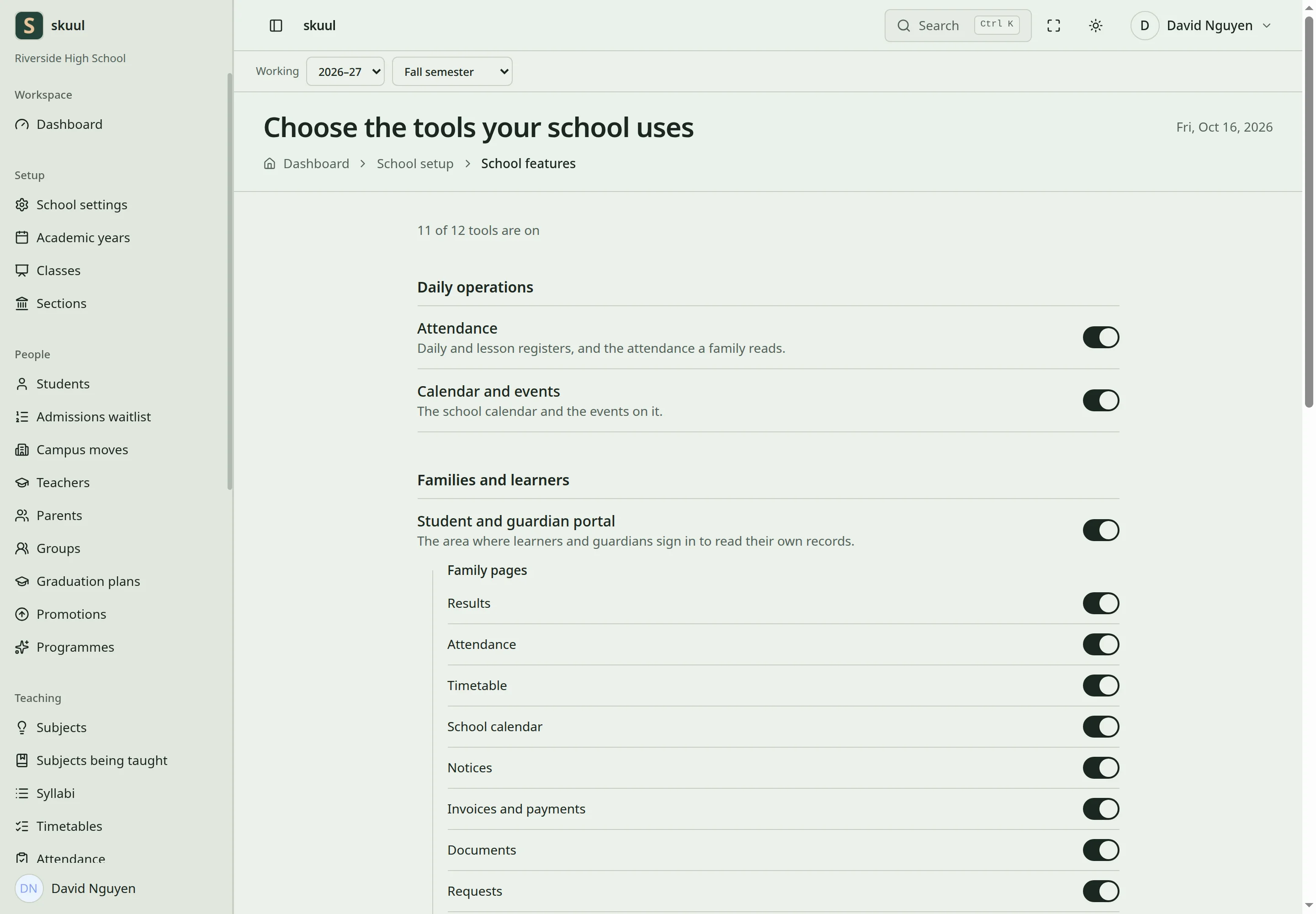
A feature switch controls the whole application area.
The page shows a count, for example 11 of 12 tools are on.
| Group | Tool | Default | Purpose |
|---|---|---|---|
| Daily operations | Attendance | On | Daily and lesson registers, and the attendance a family reads. |
| Daily operations | Calendar and events | On | The school calendar and its events. |
| Families and learners | Student and guardian portal | On | Learners and guardians sign in to read their own records. |
| Care and conduct | Discipline and safeguarding | On | Behaviour records, incidents, and safeguarding cases. |
| Care and conduct | Student support and wellbeing | On | Health notes, counselling, and support plans. |
| Staff and data | Staff operations | On | Staff leave, qualifications, and cover for absent teachers. |
| Staff and data | Imports and integrations | On | Bulk uploads and links to outside systems. |
| Reporting | Rankings | Off | Positions that compare learners. |
| Beyond the classroom | Boarding | Off | Boarding houses, beds, and nights away. |
| Beyond the classroom | Library | Off | Catalogue, loans, and due dates. |
| Beyond the classroom | Programmes | On | Clubs and activities outside the timetable. |
| Learner pathways | Graduation planning | On | Graduation requirements and learner progress in Graduation plans. |
Identity, authorization, audit records, and enrollment history are core functions. You cannot turn them off with these switches. A switch does not give permission. Users still need access to the records and actions.
Choose family pages
When Student and guardian portal is on, the page shows Family pages below it. Each family page has its own switch. The family pages are Results, Attendance, Timetable, School calendar, Notices, Invoices and payments, Documents, Requests, Library, Boarding, Graduation progress, Programmes, and Syllabi.
Some family pages also need their tool. The page says, for example, "Hidden while Library is off".
| Family page | Tool it needs |
|---|---|
| Attendance | Attendance |
| School calendar | Calendar and events |
| Library | Library |
| Boarding | Boarding |
| Graduation progress | Graduation planning |
| Programmes | Programmes |
Staff can still process existing family requests when the Requests page is off.
Change a feature
- Select the working campus.
- Open Setup → School settings and select School features.
- Review open work in the tool before you turn it off.
- Select the switch. Wait for the message, for example "Rankings turned on."
- Reload the page and check the saved state.
A family page switch shows a message such as "Results is hidden from families." Turn a tool on again to use its stored records. Normal permissions and period status apply.
Diagnose a missing feature page
- Select the campus that holds the records.
- Reload School features and check the switch.
- For a family page, check its switch under Family pages and its related tool.
- Check the account's permission for the action.
- Check the record's enrollment, teaching assignment, or ownership requirement.
Example: turning on Library does not give every teacher lend library item. Turning on Student and guardian portal does not create a guardian link. Turning on Attendance does not reopen a Closed academic period. Attendance also has stored settings for daily and lesson registers. This page does not show them. Ask the operator to check them when a register is blocked but Attendance is on.
Check the result
- Reload the page and confirm that each switch keeps its state.
- Confirm that the menu entries of each tool that is on appear for an authorized role.