Support plans and health records
Turn on Student support and wellbeing in features. Then use Operations → Student support → Support plans or Operations → Student support → Health records. Each area has its own read and write permissions.
Before you start
Use read support plan to read accommodation and intervention plans. Use read confidential support plan to read all health and counselling plans. The person who runs a confidential plan and the person who wrote it can also read it. Use create support plan to open a plan. Use update support plan to move a plan and add steps and notes. You must also be able to read the plan. Use read health record to read health records and update health record to change them.
The default administrator role does not have read confidential support plan, read health record, or update health record. Grant them on purpose in permissions.
Create a support plan
Confidential support requires its specific access permission.
- Select Open a plan. The Open a support plan page opens.
- Select the learner in Learner. The list shows learners who attend the working campus.
- Select Kind of help: Health, Counselling, Accommodation, or Intervention.
- Enter Title, for example the help and how often it happens.
- Optionally enter Summary: what the child needs and what the school agreed.
- Enter Starts and optionally Review.
- Select Run by, or keep Nobody yet.
- Select Open the plan.
The plan page opens with the state Draft.
Health and Counselling plans are confidential. Accommodation and Intervention plans use read support plan.
Title accepts up to 255 characters. The summary accepts up to 5000. The form shows these errors:
| Input | Message |
|---|---|
| No learner | Choose the learner. |
| No title | The title field is required. |
| Review before Starts | A plan cannot be reviewed before it starts. |
Review and move a plan
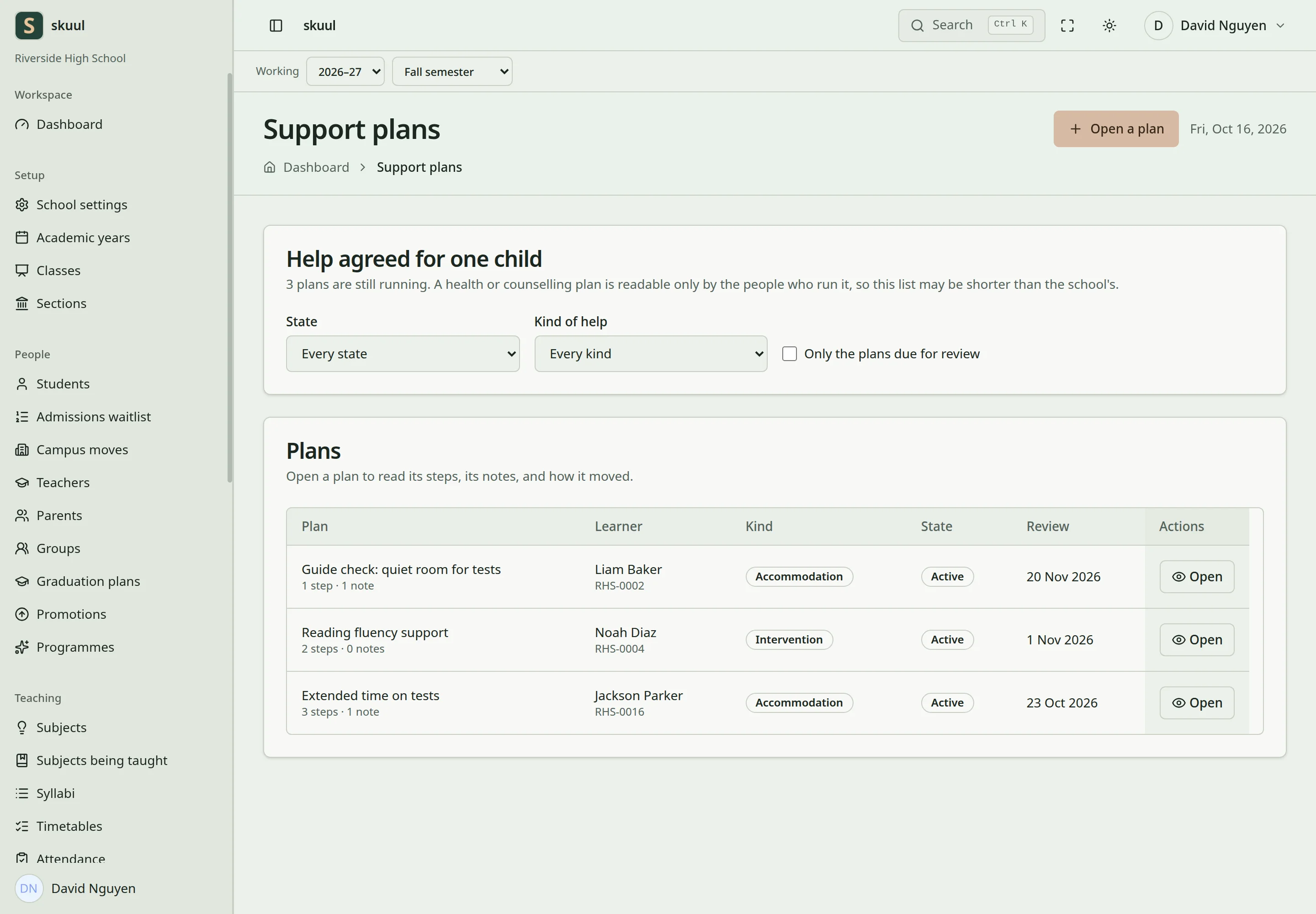
The list shows Plan, Learner, Kind, State, and Review. Filter by State and Kind of help, or select Only the plans due for review. The list shows only the plans you can read. Select Open to open a plan.
To move a plan:
- Select the next state in Move the plan to.
- Optionally enter Why (up to 500 characters).
- Select Move the plan.
History shows each move, with the date, the person, and the reason.
| From | Permitted next states |
|---|---|
| Draft | Active, Cancelled |
| Active | On hold, Completed, Cancelled |
| On hold | Active, Completed, Cancelled |
| Completed | Active |
| Cancelled | None |
When a plan becomes Completed or Cancelled, Runs gets an end date. Completed and Cancelled plans do not accept new steps or notes. To add work to a Completed plan, move it to Active. You cannot reopen a Cancelled plan.
Add steps and notes
- Under Steps, enter What has to happen (up to 1000 characters).
- Optionally select Who and enter Due.
- Select Add step.
The heading shows the open steps, for example Steps · 1 to do. Select Mark done when a step is complete.
To record progress, enter the note in Note (up to 5000 characters) and select Add note. You cannot change or delete a note.
Maintain health information
- Open Health records.
- Find the learner with Find a learner, by name or admission number.
- Select Only learners without a record to find missing records.
- Open the learner's record.
- Enter the fields that the school needs.
- Select Save the record.
The page shows The health record was saved. If you changed nothing, it shows Nothing changed.
The record has two sections:
- In an emergency: Blood group, Emergency contact, Contact number, and Relation to the child.
- What the school must know: Conditions, Allergies, Medication, Food the child cannot eat, and Anything else.
Blood group accepts 10 characters. Emergency contact accepts 100. Contact number and Relation to the child accept 50 each. Conditions, Allergies, Medication, and Food the child cannot eat accept 2000 each. Anything else accepts 5000. Write only what the school needs to keep the child safe. The audit log keeps your name and the changed fields, never their values.
The form saves only the fields you changed. If another person changed the same field, the field shows Somebody else changed this while you worked. with the current value. Read the current value. Select Save the record again to keep your value. Without update health record, the page shows You may read this record but not change it. You can open records only for enrollments at the working campus.
Health records and confidential plans do not appear in the family portal. Restricted record sharing needs explicit authority and approval. An organization role alone does not grant access to these records.
| Problem | Action |
|---|---|
| Confidential plan is not in the list | Check read confidential support plan, Run by, or the plan's writer. |
| Health records is not in the menu | Check read health record. |
| Field shows Somebody else changed this while you worked. | Read the current value, then save again to keep yours. |
| Learner is not in Learner | Check that the learner attends the working campus. |
Check the result
- Check the learner, kind, state, review date, and steps on the plan page.
- Check access with a permitted account and a restricted account.
- Check that the health record shows the saved values.
See cases, record sharing, and data retention.