Behaviour and safeguarding cases
Turn on Discipline and safeguarding in features, then use Operations → Cases. A case records what happened, who was involved, and what the school did about it. Behaviour and safeguarding cases have different access rules.
Before you start
Use read incident to read behaviour cases. Use read safeguarding case to read all safeguarding cases. The handler and the person who recorded a safeguarding case can also read it. Use create incident to record a case. Use update incident to move a case and add actions and notes. You must also be able to read the case. Behaviour permissions do not give access to safeguarding cases. The default administrator role does not have read safeguarding case. Grant it on purpose in permissions.
Record a case
- Select Record a case.
- Enter Summary, for example one line that names the event.
- Select Kind of case: Behaviour or Safeguarding.
- Enter When and optionally Where.
- Select Handled by, or keep Nobody yet.
- Enter What happened. Write what you saw, not what you think it means.
- Under People, select the learner in Choose a learner.
- Select why the learner appears, and optionally enter Note (optional).
- Select Add a person for each other learner.
- Select Record the case.
The case page opens with a reference, for example CASE-26-YYEIAC, and the state Reported. For Safeguarding, the form shows Restricted.
The roles are Subject of the case, Affected party, Witness, Reporter, and Handler. You can add up to 20 people. A row with no learner is ignored. Handled by lists the staff of the working campus.
Summary and location accept up to 255 characters. What happened accepts up to 5000. A participant note accepts up to 255 characters. When cannot be in the future. The browser stops the form when the time is later than now. An empty Summary shows The summary field is required.
Review and finish a case
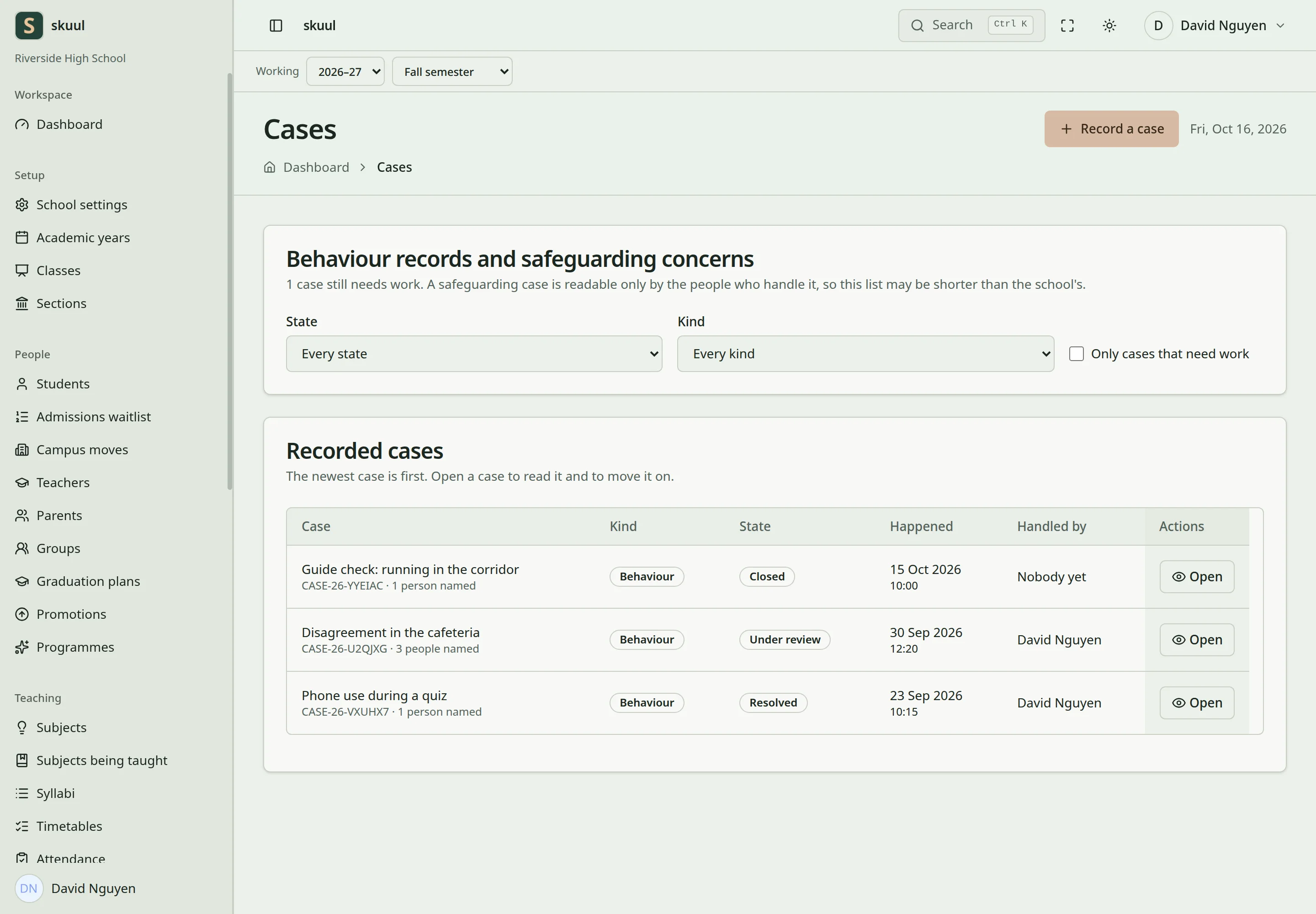
Case category affects access to its records.
The list is under Recorded cases. It shows Case, Kind, State, Happened, and Handled by. Filter by State and Kind, or select Only cases that need work. The list shows only the cases you can read. Select Open to open a case.
To move a case:
- Select the next state in Move the case to.
- Optionally enter Why (up to 500 characters).
- Select Move the case.
History shows each move, with the date, the person, and the reason.
The states are Reported, Under review, Referred, Action taken, Resolved, and Closed. The list offers only the next states that are permitted. A Resolved case can go back to Under review. A Closed case cannot move again. You cannot reopen it. Resolved and Closed cases do not accept new actions or notes.
Add actions and notes
- Under Actions, enter the kind in What kind, for example a meeting or referral.
- Enter What has to happen.
- Optionally select Who and enter Due.
- Select Add action.
Still to do counts the open actions. Select Mark done when an action is complete. What kind accepts up to 100 characters. What has to happen accepts up to 1000.
- Under Notes, enter the note in Add a note (up to 5000 characters).
- Keep Private to the case handlers selected for a private note, or clear it.
- Select Add note.
A private note shows Private. Only users with read safeguarding case, the handler, and the person who recorded the case can read it. You cannot change or delete a note or an earlier move.
Cases do not appear in the family portal. A campus move does not give access to cases at the old campus. Use record sharing with the applicable restricted-data authority.
| Problem | Action |
|---|---|
| Case is not in the list | Check read safeguarding case or the handler. Check the working campus. |
| Move the case is not shown | Check update incident. A Closed case shows no move control. |
| Add action or Add note is not shown | The case is Resolved or Closed. Move a Resolved case to Under review. |
| Learner is not in Choose a learner | Check that the learner has an enrollment at the working campus. |
Check the result
- Check the state, actions, and notes on the case page.
- Check that a Closed case shows no Add action or Add note form.
- Check that an account with only
read incidentcannot read a safeguarding case.
See support plans, record sharing, and permissions.