Use the workspace
Sign in with the email address attached to your account. There is no public registration. Use the invitation from your administrator to set your first password.
Choose your role guide for daily tasks, review duties, and permission limits.
Choose the working context
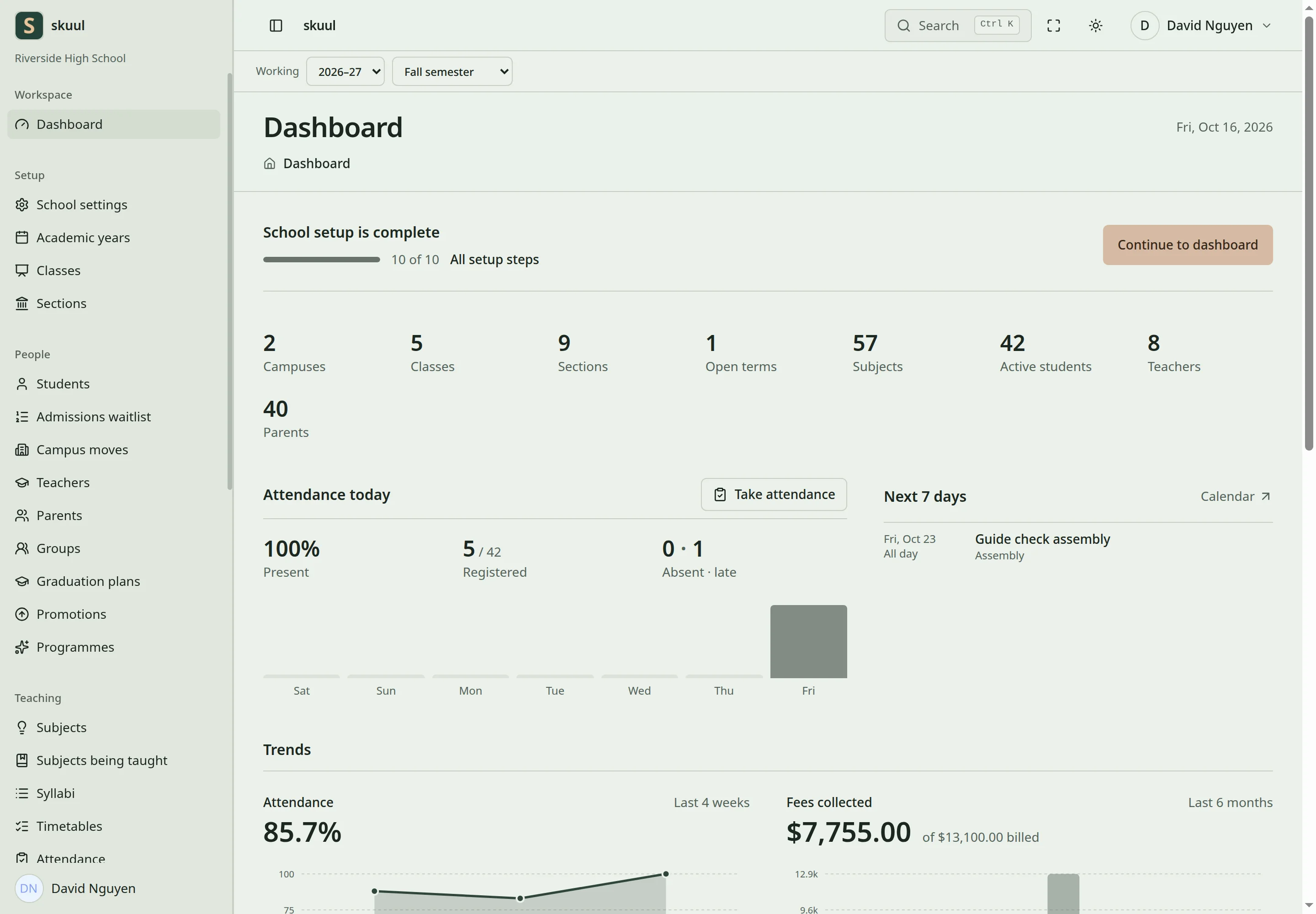
The working bar names the school year and term that every screen uses.
- Open the Dashboard.
- Check the campus name in the header. The header shows it when you can work in more than one campus.
- If you work in more than one campus, select the campus in the Working school list at the top of the sidebar.
- In the working bar, after Working, select the academic year.
- Select the term when the page requires one.
- Check these selections before you enter records.
The Working school list shows only campuses where you have access. An organization role does not give campus access. Administrators with read school can also open Organization → Schools, select the School branch, and select Set working school. Lists and actions use the selected campus. Many teaching pages also use the working year and term. When the working term is not the current term, the bar shows "Today is" and the current term. Finance uses financial periods separately from teaching periods.
Campus labels can differ. For example, a campus can show Grade instead of Class, or Semester instead of Term. The guides use academic level, section, cycle, and period where a label can vary.
Find a page
The sidebar groups pages under Organization, Setup, People, Teaching, Assessment, and Operations. Operations contains Staff, Finance, Boarding, Facilities, Library, Imports, and Roles, among others. Family accounts also see a My school group. Select Search or press Ctrl K to open the command menu. It lists the same permitted pages. A missing menu entry can mean that a feature is disabled or that your role lacks permission. Changing the address does not grant access. A page you cannot open shows "Not open to you".
Everything of mine opens the family portal. Notification settings controls notice email preferences. School calendar opens the calendar of the learner's campus. These My school entries appear for student and parent accounts.
Save and review changes
Wait for the save result before you leave a form. Read the validation messages beside each field. Some forms detect changes made by another person. Review the current value before you confirm an overwrite. A closed period, archived record, or published revision can prevent editing. Use the workflow for correction or revision. Do not create a duplicate.
Return to an earlier record safely
Select the record's owning campus before you correct historical records. For academic records, also select its year and term. A learner's later campus or placement does not change ownership of earlier attendance or ledger entries. Open the existing record. Do not create a replacement identity. Read its publication or closure state before you select an edit action. For published academic records, follow the revision and approval procedure. For posted finance records, follow the correction or reversal procedure.
If a save fails, keep the displayed error and the record identifier. Reload to see whether any part of the operation succeeded before you submit another request. Gradebook rows and import rows can succeed separately. Do not treat a timeout as proof that nothing changed.
Start with the worked campus exercise to learn the normal task sequence.
| Problem | Action |
|---|---|
| Historical record is missing | Select its owning campus, year, and term. |
| Edit control is absent | Check permission, record state, and publication or closure. |
| Save times out | Reload the record and verify what succeeded before you retry. |
Check the result
- Confirm that the header shows the intended campus, when it shows a campus.
- Confirm that the working year and term match the records you will change.
See account access, campus settings, and troubleshooting.
Use daily campus checks to coordinate attendance, office work, services, and shift handover.