Timetables and lesson cover
A timetable repeats during one term. It belongs to one section, or it is schoolwide. The published revision is the schedule the campus teaches. A change goes out as the next revision.
Prepare the course offerings, teachers, and rooms first.
| Task | Campus permission |
|---|---|
| See timetables | read timetable |
| Create a section timetable | create timetable |
| Create a schoolwide timetable | create timetable and create schoolwide timetable |
| Build, publish, or record cover | update timetable |
Build a timetable
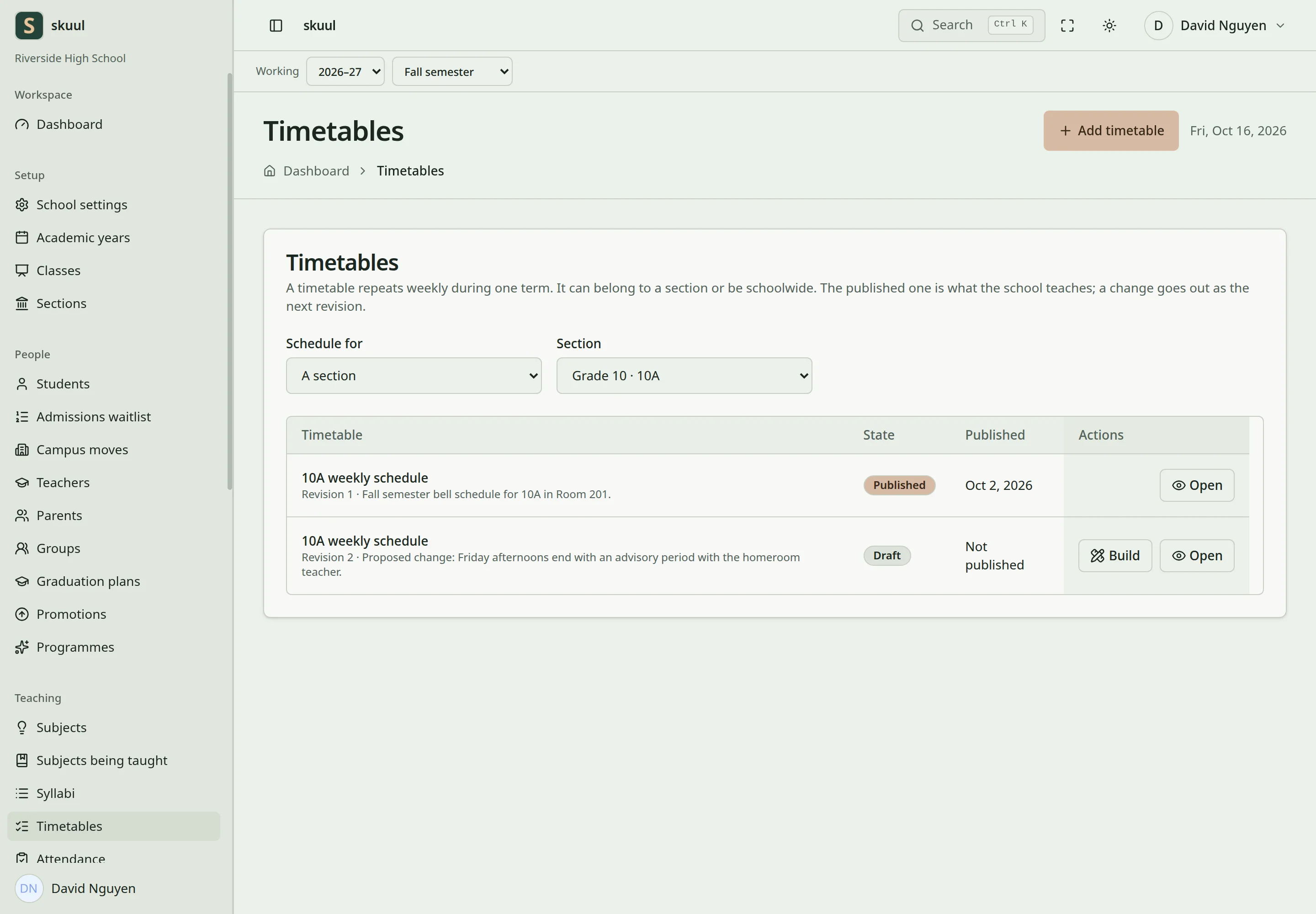
Publish only after reviewing timetable conflicts.
- Open Teaching → Timetables and select Add timetable.
- Enter Timetable name. Select Academic period and Schedule for: One class section or Schoolwide.
- For a section, select Section. Enter an optional Description.
- Select Create timetable. The builder opens.
- Add the time slots. See add a time slot.
- Select a slot in the calendar and choose a subject or an item such as Lunch.
- Select Where for the room, or keep The section's own room.
- Select Publish and confirm.
The term and the section must belong to the working cycle.
Add a time slot
- In the builder, select Add time slot, or select a date in the calendar.
- Enter Starts and Ends. Ends must be after Starts.
- Select Repeat: Every week(s), Every month(s), or One date only.
- For a repeating slot, enter Repeats every, from 1 to 52, and Starts on. For a weekly slot, select the weekdays under On these weekdays.
- Select Add time slot.
Weekly slots follow the term dates and stop at the term end. One-date slots stay on their date. The builder flags them if the term dates change.
The slot list under Time slots shows each slot. Remove deletes the slot and everything placed in it. To clear a slot but keep it, select Leave it empty.
Settle clashes
The builder lists clashes above the calendar, for example 1 clash to settle before publishing. The checks cover teachers, rooms, facility bookings, and rooms out of use. Teacher checks include other campuses of the organization.
Publish refuses a timetable with a clash, for example: This timetable cannot be published: Angela Torres already teaches 10A weekly schedule at 08:00 on that day. Move or change the lesson, then publish again.
Revise a published timetable
A draft timetable is editable. A published timetable is read-only.
- Open the published timetable and select New revision.
- Change the draft in the builder.
- Select Publish.
Publishing the new revision archives the previous one for that section and term. The previous revision stays in the history.
To give one section a separate version, select the section under Give a section its own version. Select Start the draft. The draft starts as a copy, and the original stays as it is.
Record lesson cover
Cover changes the teacher for one date. The weekly timetable stays as published.
- Open the published timetable. Find Cover a lesson.
- Select Scheduled lesson and Covering teacher.
- Enter Date and Reason, up to 1000 characters.
- Select Record cover.
The cover shows under Recorded cover, for example Jasmine Wright covers. To undo a cover for today or a later date, open its ellipsis and select Withdraw.
The covering teacher must be free. If not, the form says, for example, Hannah Lee teaches 11B weekly schedule at that time on that day. The check also covers approved leave, working hours, and closure days.
Families see published timetables when the timetable portal area is on.
| Problem | Action |
|---|---|
| A published timetable cannot be edited | Select New revision. |
| Publish is refused | Settle each listed clash. |
| A teacher clash names another campus | Change the lesson, or ask the other campus to change its timetable. |
| A room is not available | Check facility bookings and whether the room is out of use. |
| A covering teacher is refused | Choose a teacher who is free at that time. Check leave, working hours, and closure days. |
Check the result
- The timetable list shows Published and the date.
- The calendar shows each lesson on the expected days.
- After a cover, Recorded cover shows the date and the teacher.
See facilities, staff availability, and calendar events.