Academic calendars and closure
Use Setup → Academic years to prepare a campus calendar. The menu label follows the campus terms. The page title uses the campus term, for example Academic years. Use Organization → Calendar templates for calendars that several campuses reuse.
| Task | Campus permission |
|---|---|
| Create a cycle | create academic year |
| Edit or publish a cycle | update academic year |
| Add or edit a period | create academic period, update academic period |
| Start closing and close | close academic period |
| Reopen | reopen academic period |
| Change the working cycle or period | set academic year, set academic period |
Prepare a cycle
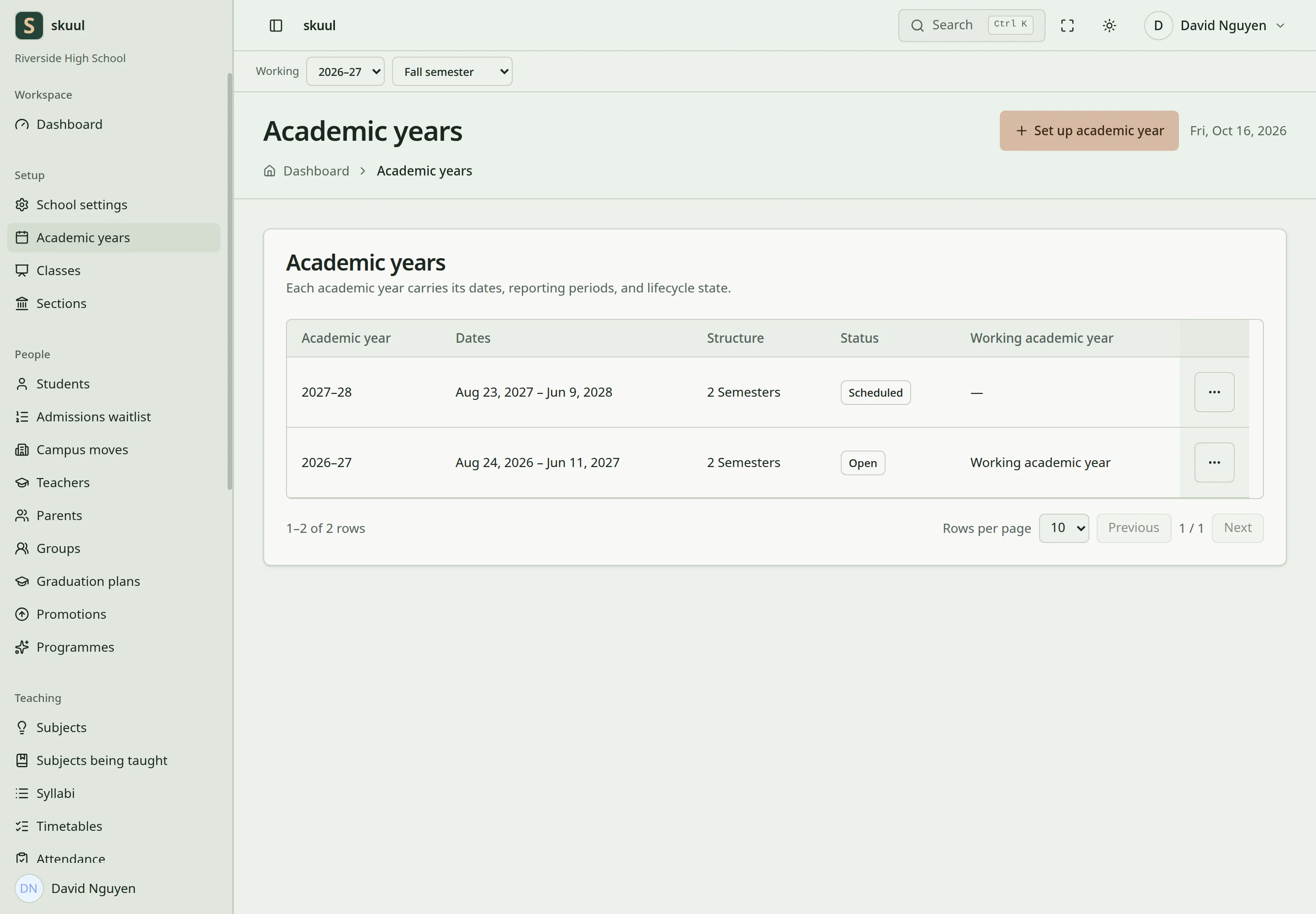
The list shows each cycle with its dates, structure, and status. Select Set up academic year. The setup has five steps:
- Dates and periods
- Teaching approach. See academic structure.
- Classes and teachers
- Subjects for this year. See course offerings.
- Review and publish
Select Save and finish later to stop after any step. The cycle stays a draft. Its page shows Continue setup and the next step.
Enter calendar dates
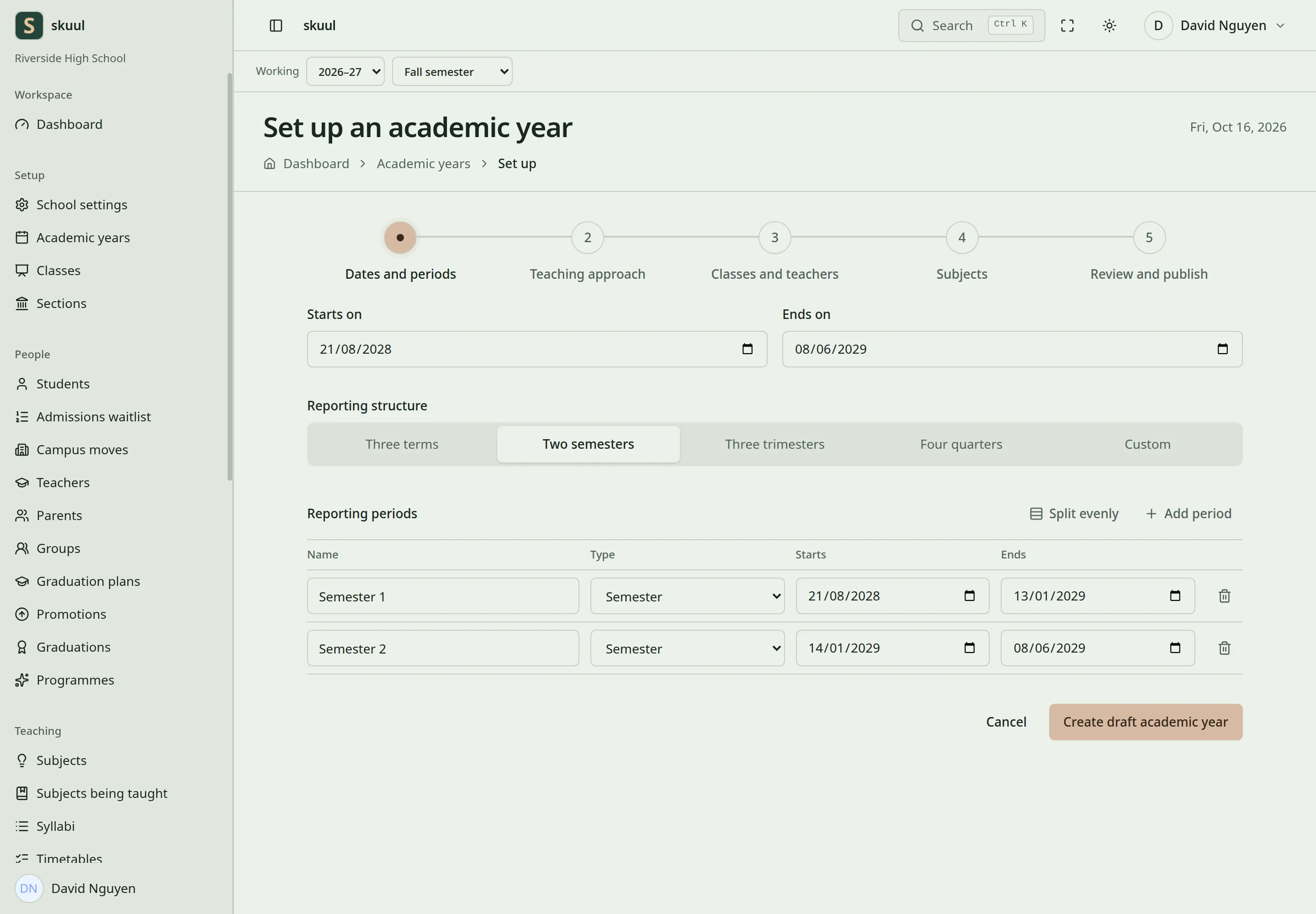
- Enter Starts on and Ends on.
- Select the Reporting structure: Three terms, Two semesters, Three trimesters, Four quarters, or Custom.
- Select Split evenly to divide the cycle into equal periods.
- Check each period's Name, Type, Starts, and Ends.
- Select Add period for another row.
- Select Create draft academic year.
Split evenly does not know your holidays or exam weeks. For example, it can end Semester 1 on 15 January and start Semester 2 the next day. Change the dates to leave the winter break out.
| Field | Requirement |
|---|---|
| Starts on, Ends on | Required. Must not overlap another cycle of the campus. |
| Periods | One to eight rows. |
| Name | Required. Up to 100 characters. |
| Starts, Ends | Each period must fit within the cycle. A child period must fit within its parent. |
If the dates overlap, the form says, for example, This calendar overlaps 2026–27. Holidays and closure days are not periods. Add them in the school calendar.
When you change the dates of a cycle that has records, the form warns about records that fall outside the new dates. Read the warning before you confirm.
Publish the calendar
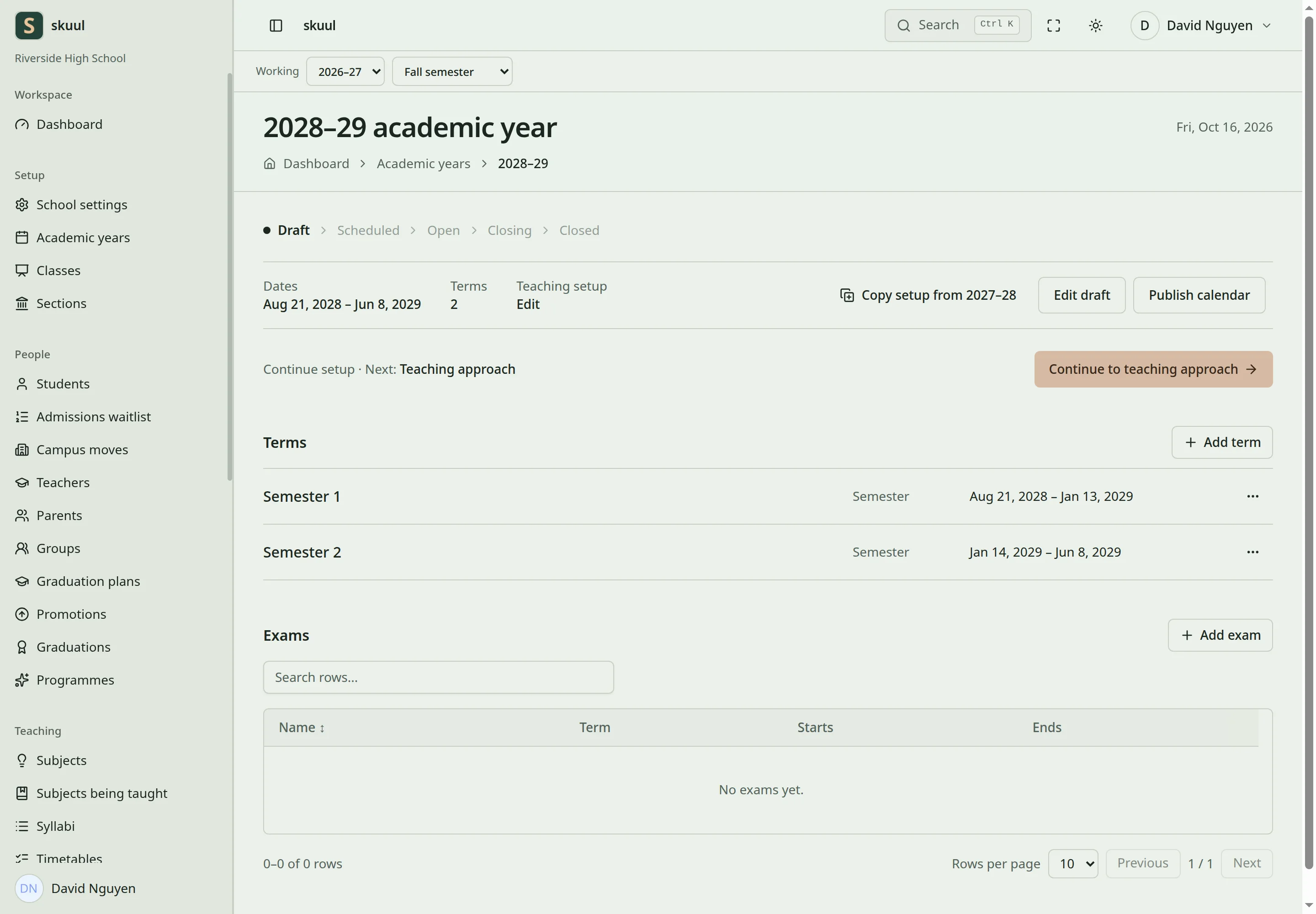
A draft cycle's page shows Copy setup from the previous cycle, Edit draft, and Publish calendar.
- Select Edit draft to correct dates. Select Save draft.
- Select Publish calendar.
The status line shows Draft, Scheduled, Open, Closing, and Closed. After publication, the cycle is Scheduled. The scheduler opens it when its start date arrives.
Understand period status
| Status | Effect |
|---|---|
| Draft | Planning only. |
| Scheduled | Dates are published. The period waits for its start date. |
| Open | Normal work is allowed. |
| Closing | Staff finish and correct work. New work is restricted. |
| Closed | Records of the period are read-only. |
| Archived | Finished history. The period cannot reopen. |
The scheduler opens scheduled periods when their start date arrives. It never closes a period.
Close a period or cycle
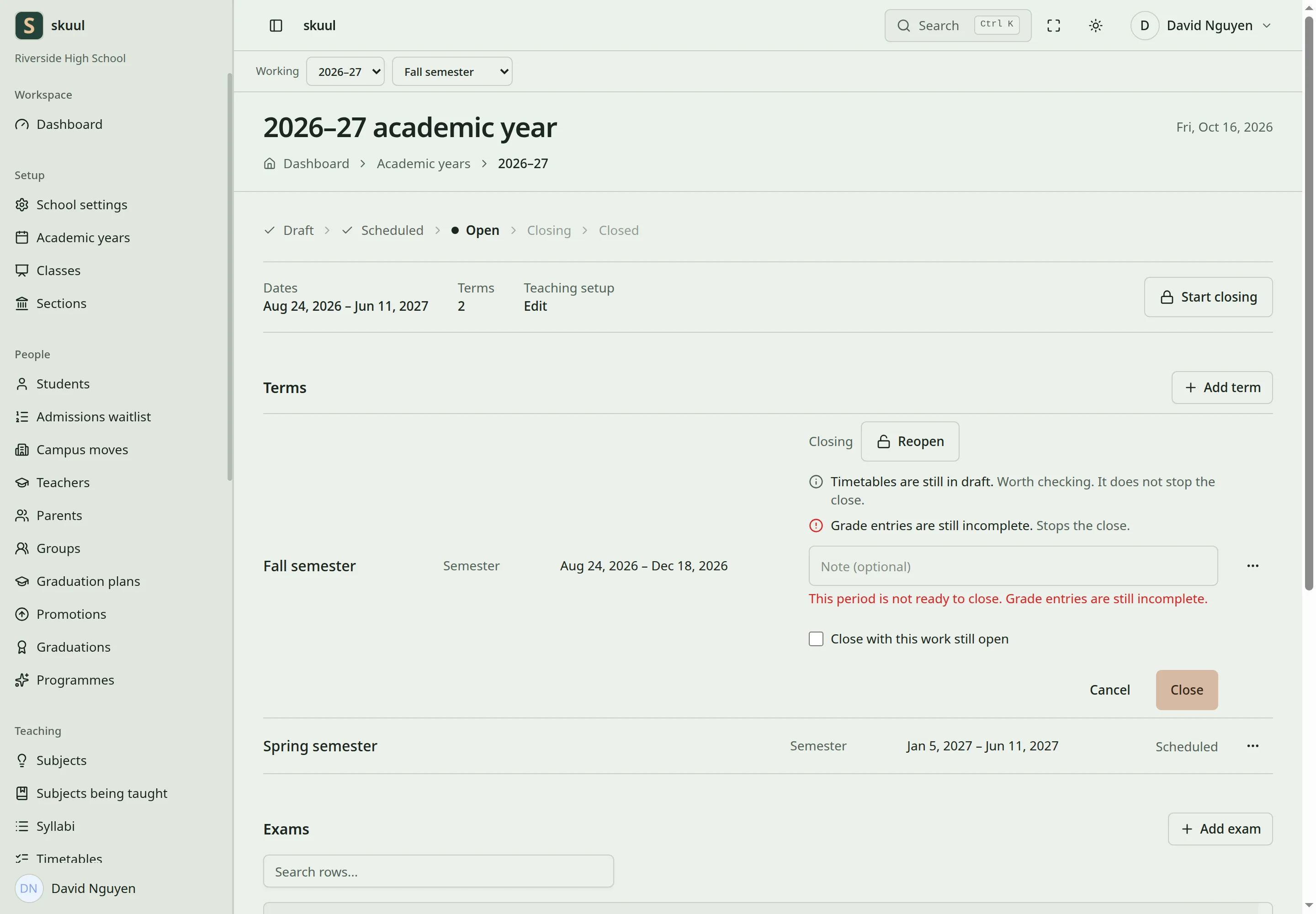
- Open the cycle.
- To close the whole cycle, select Start closing at the top. To close one period, open the ellipsis of its row and select Start closing.
- Finish the outstanding work, such as incomplete grade entries.
- Select Close. The form lists the outstanding work, or says Nothing is outstanding.
- Enter an optional Note.
- Select Close again.
Each listed item says Stops the close. or Worth checking. It does not stop the close. For example, Timetables are still in draft. does not stop the close.
Start closing takes effect at once. It does not ask for confirmation. If you started closing by mistake, select Reopen on the period.
If work is still open, the form names the kind of work, for example This period is not ready to close. Grade entries are still incomplete. Find the open work in gradebooks and finish it. Close with this work still open closes the period anyway. Select it only when the person who decides on closure agrees.
The message Closed. shows when the period closes. Closing a cycle also closes its periods. Financial periods close separately.
Reopen a period
- Select Reopen on the period.
- Enter Why it is reopening. It is required, up to 500 characters.
- Select Reopen.
Without a reason, the form says Say why it is reopening. A period cannot reopen while its cycle is closed. Reopen the cycle first. An archived period cannot reopen.
Prepare the next cycle
- Create the next cycle with Set up academic year.
- On its page, select Copy setup from the previous cycle.
- Read the review. Nothing is created until you confirm.
The copy includes the teaching approach and the period structure, with the dates moved to the new cycle. It never copies learners, placements, teacher assignments, classes, subjects, exams, timetables, attendance, or results.
To copy sections, open Setup → Sections and select Roll sections into another year. To copy course offerings, open Teaching → Subjects being taught, then the ellipsis, then Roll over subjects. Each roll-over shows a preview before it creates anything. Copying does not promote learners. Complete promotion separately.
| Problem | Action |
|---|---|
| The cycle overlaps another cycle | Change Starts on or Ends on. |
| Generated dates are wrong | Edit each period before you publish. |
| Ordinary work is read-only | Check whether the period is Draft, Closing, Closed, or Archived. |
| Closure reports incomplete grade entries | Finish the entries in each gradebook of the period. |
| A period is closing by mistake | Select Reopen and enter the reason. |
| The next cycle has no learners | Copying does not promote or place learners. See promotion. |
Check the result
- After publication, the cycle shows Scheduled and its period dates.
- Check the status before you record new work.
- After closure, check that records of the period reject edits.
Use period closure and next-cycle handover to coordinate results, documents, structure, and learner placement.