Levels, sections, and teaching models
A level is a class, for example Grade 9. The campus reuses its levels every cycle. A section is one group of a level in one cycle, for example Grade 9 A in 2026–27.
| Task | Where |
|---|---|
| Add or edit levels | Setup → Classes |
| Add sections, or copy them to another cycle | Setup → Sections |
| Choose the teaching model | Open the cycle, then select Edit next to Teaching setup. |
Create the structure
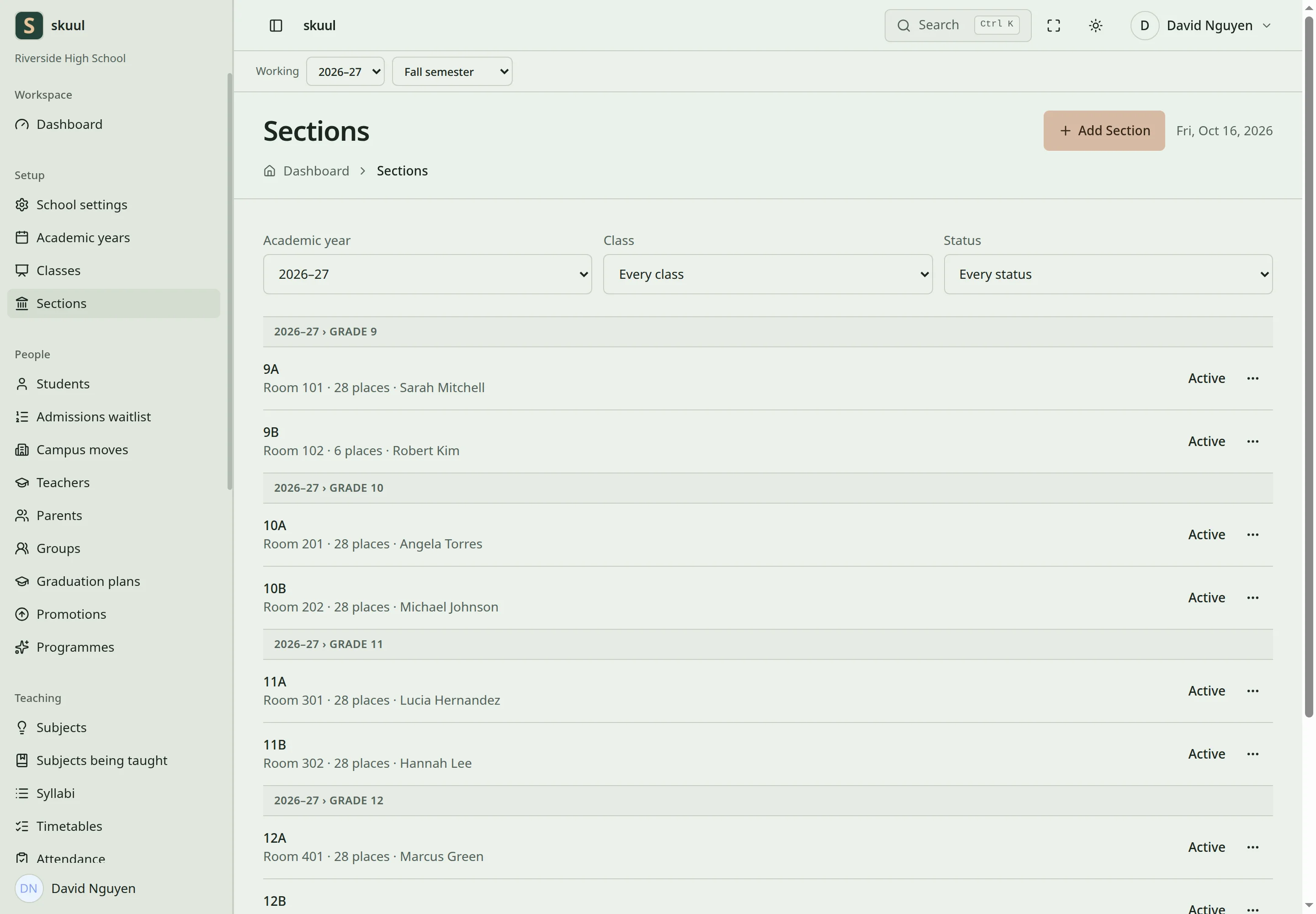
Section capacity includes suspended enrollments and open offers.
- Create the levels of the campus.
- Put levels into a level group where the campus needs a hierarchy.
- Create the sections of each level for the cycle.
- Set the capacity and class teacher of each section.
- Activate each section.
- Place learners into the sections. See students.
Add a level
- Open Setup → Classes and select Add Class.
- Enter Level name.
- To make a level group, select the group checkbox. A group holds other levels. Learners are not placed in a group.
- Enter an optional Short code and the Display order.
- Select an optional Level group (optional).
- Select Create class.
A new level is active at once. Each name and each short code must be unique in the campus. If not, the form says This school already has a level with that name.
Add a section
- Open Setup → Sections and select Add Section.
- Select Academic year and Class.
- Enter Section name and select an optional Class teacher.
- Enter optional details: Local label, Stream, Shift, Language of instruction, and Room.
- Enter Capacity to limit the seats.
- Select Create draft section. The button uses the campus term for a section.
- Check the section page. It shows Draft.
- Select Activate.
| Field | Requirement |
|---|---|
| Section name | Unique within its level and cycle. |
| Capacity | A whole number from 1 to 999. Leave it blank for no limit. |
| Display order | A whole number from 0 to 9999. |
Capacity counts active and suspended enrollments, plus seats held by admission offers. A room is only a label. Book rooms in facilities.
Archived levels and sections do not accept normal edits. Before you archive a section, move its active learners and close its admission queue. The section history stays for reports and old placements.
Select a teaching model
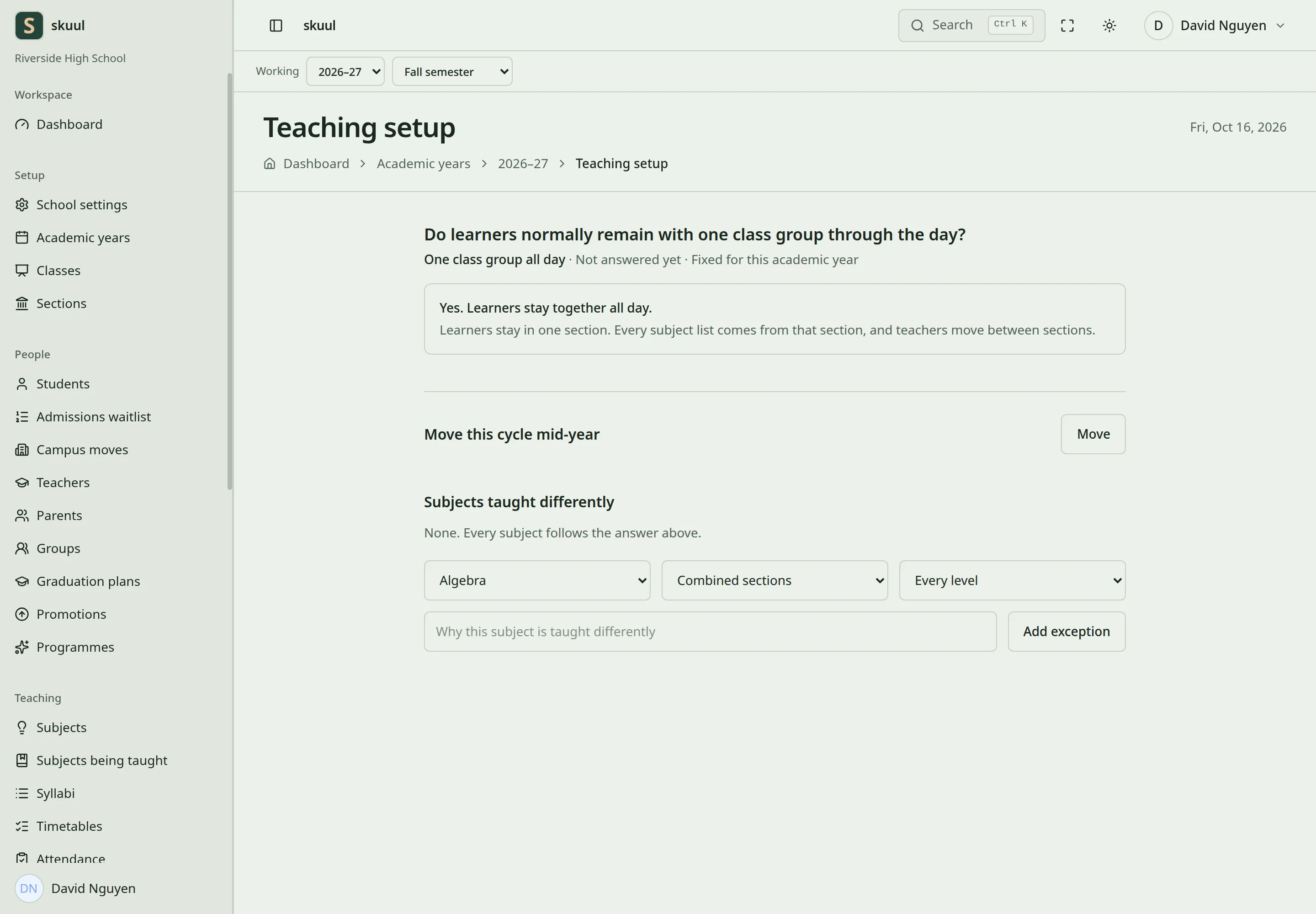
The teaching setup asks Do learners normally remain with one class group through the day?
| Answer | Model | Effect |
|---|---|---|
| Yes. Learners stay together all day. | One class group all day | Each subject roster comes from the section. Teachers move between sections. |
| Mostly. A few subjects mix or split the groups. | One class group, with exceptions | Sections stay. Selected subjects use separate groups. |
| No. Learners follow their own subject timetable. | A timetable of separate subjects | Each subject has its own roster. |
- Open the cycle. Select Edit next to Teaching setup.
- Select an answer.
- Select Save teaching setup.
Set the model before you create the course offerings of the cycle. The campus terms do not change the model.
Section and level rosters are available in every model. Combined-section and individual rosters need one of the last two models, or a subject exception.
Change the model of a running cycle
When the cycle has started, the page shows Fixed for this academic year and Move this cycle mid-year.
- Select Move.
- Select the new model under Move to.
- Enter Why the cycle is moving. It needs 15 to 500 characters.
- Select the confirmation New work uses the new answer. Existing arrangements stay.
- Select Move this cycle.
Add a subject exception
Use an exception when one subject is taught differently from the model.
- Under Subjects taught differently, select the Subject.
- Select How it is taught: Combined sections or Named learners.
- Select a Level, or keep Every level.
- Enter Why. It needs 10 to 500 characters.
- Select Add exception.
Reuse structure
- To copy sections, open Setup → Sections and select Roll sections into another year.
- To copy offerings, open Teaching → Subjects being taught, then the ellipsis, then Roll over subjects.
Each copy shows a preview first. Check the names, capacity, and teachers. Copying does not move learners. Use promotion.
| Problem | Action |
|---|---|
| A learner cannot be placed in a section | Check that the section is active and in the correct cycle. |
| A new section name is rejected | Check the other sections of the same level and cycle. |
| Archiving is blocked | Move the current learners. Close waiting candidates and offers first. |
| A separate roster is not available | Change the teaching model or add a subject exception. |
Check the result
- Check that each section has the correct level and cycle.
- Check the occupied seats and held offers before you place learners.
See course offerings, students, and academic calendars.