Calendar events and closure days
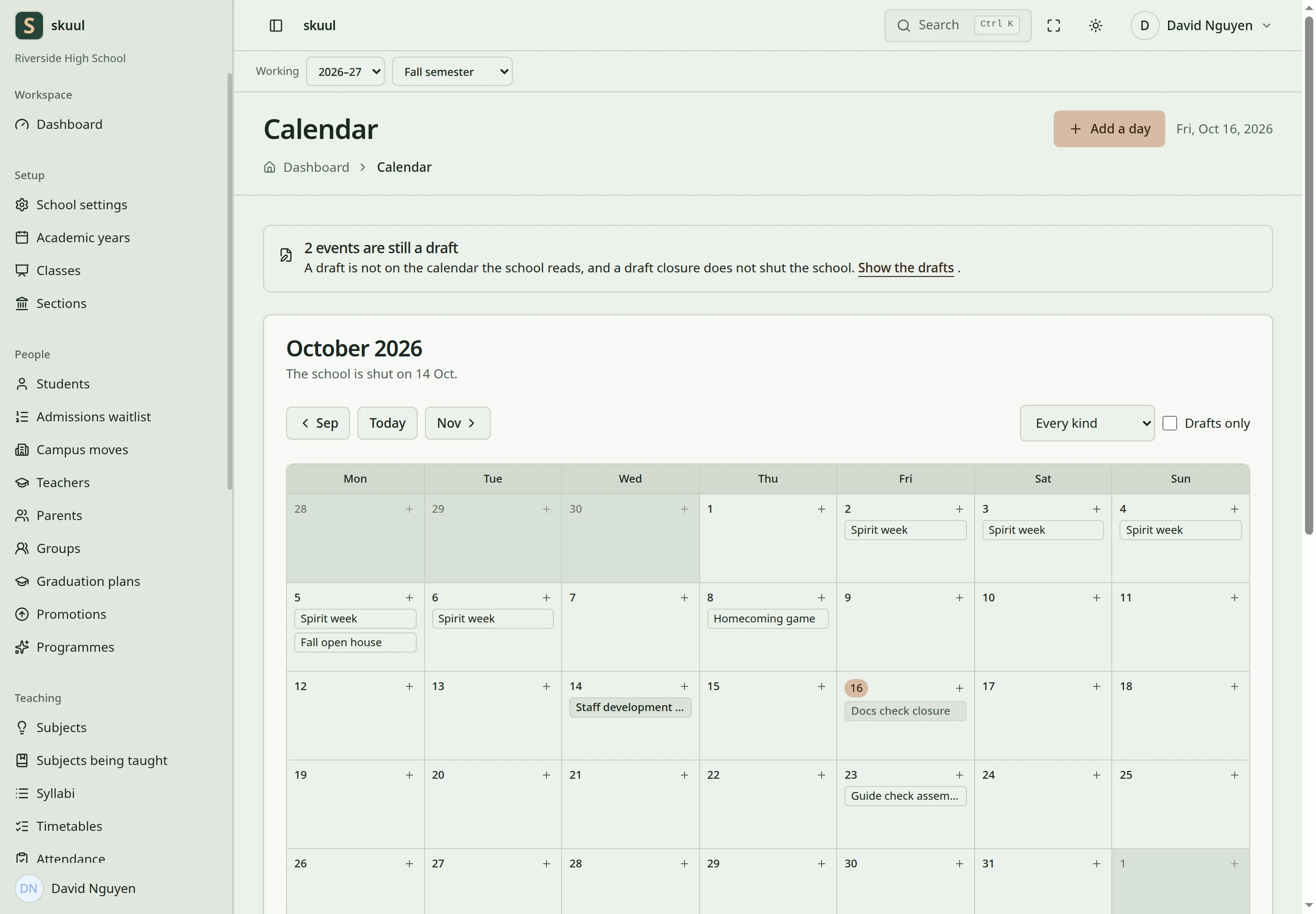
Turn on Calendar and events in features, then use Operations → Calendar. The calendar shows one month as a grid, then lists What is on this month. Families read published days in the portal under School calendar.
Before you start
Use read calendar event to open the calendar. Use create calendar event to add a day and update calendar event to change one. Use publish calendar event to publish a day or make it a draft again. Use delete calendar event to remove a day. A user without update calendar event sees a read-only summary of a published day. A draft is visible only to its creator and to users with update calendar event.
Add an event
A closure day differs from closing an academic period.
- Select Add a day, or select + on a day in the grid.
- Enter the title in Title, e.g. mid-term break.
- Select Kind of day.
- Optionally enter Where (optional).
- Keep All day selected, or clear it to enter start and end times.
- Enter Starts and Ends.
- Optionally enter What it is (optional).
- Under Who it is for, select sections or name people. Select nobody to make it for the whole school.
- Select Save as a draft.
The page opens the saved day and shows Saved as a draft. Publish it when it is ready. The status line shows Draft.
The kinds are Holiday, Closure, Special day, Assembly, Activity, Parent meeting, Appointment, Examination, and Event. Only Holiday and Closure shut the school. The list marks them — school shut. To name a person, type at least two letters in Name a person, e.g. for an appointment. Select the match. You can name only active members of the working campus.
Title and location accept up to 255 characters. The description accepts up to 2000. If Ends is before Starts, the form shows A day on the calendar cannot end before it starts. If the day lasts more than one year, the form shows A day on the calendar cannot last more than a year. Check the year. An all-day event covers each day from the start day to the end day.
Academic cycle dates belong in the academic calendar, not in an event. An event does not publish a notice or change a learner's placement.
Publish an event
- Open the day from the grid, or select Open in its row.
- Check the fields. If you change them, select Save.
- Select Publish.
The page shows Published. The school can read it now. The status line changes to On the calendar.
To withdraw a published day, open the ⋯ menu and select Make it a draft again. The page shows A draft again, so nobody else sees it. The same menu holds Remove for users with delete calendar event.
Record a closure day
- Add a day and select Holiday — school shut or Closure — school shut in Kind of day.
- Check Starts, Ends, and Who it is for.
- Select Save as a draft, then select Publish.
The form shows Once published, attendance and the timetable treat these days as shut. A draft closure has no effect. The calendar warns, for example, 2 events are still a draft. Select Show the drafts to list them.
A published closure blocks a new register for the sections it covers. It also blocks lesson cover on those days. A closure for the whole school covers every section. This is separate from closing an academic period, which freezes its records.
Review the calendar
The card title shows the month. Its description lists the closure days, for example The school is shut on 14 Oct. Use the month buttons and Today to move between months. Use Kind of day and Drafts only to filter the list. Select Clear to remove the filters. The Who it is for column shows The whole school, the sections, or the named people.
Families see a published day when it is for the whole school, for the child's section, or names the child. The School calendar portal area and Calendar and events must be on for the child's campus. A draft never appears in the portal.
| Problem | Action |
|---|---|
| Family cannot see an event | Check that it is published and that Who it is for includes the child. Check the School calendar portal area. |
| Attendance still opens on a closure date | Check that the closure is published and covers the section. |
| Date range is rejected | Correct reversed dates or a span longer than one year. |
| Event has no Publish button | Check publish calendar event. |
Check the result
- Check the date, kind, and audience in What is on this month.
- Check that the status line shows On the calendar.
- For a closure day, check that the register for that day is blocked.
See academic calendars, attendance, and family portal.